# Create automations
> Create review, survey, video, referral and marketing automations.
Source: https://support.amazeful.com/campaigns/automations-overview/create-automations
Documentation index: https://support.amazeful.com/llms.txt
## Overview
Our platform allows you to create different types of automations:
* Reviews Automation
* Surveys Automation
* Video Testimonials Automation
* Referrals Automation
* Marketing Automations
For our example we will create a review automation, the other automations type surveys, videos, referrals and marketing follow the same pattern.
## Create Automation
**Reviews Automation** - means setting up automated contacts review requests. This section explains how to automate your review request to all your contacts in a specific audience or segment.
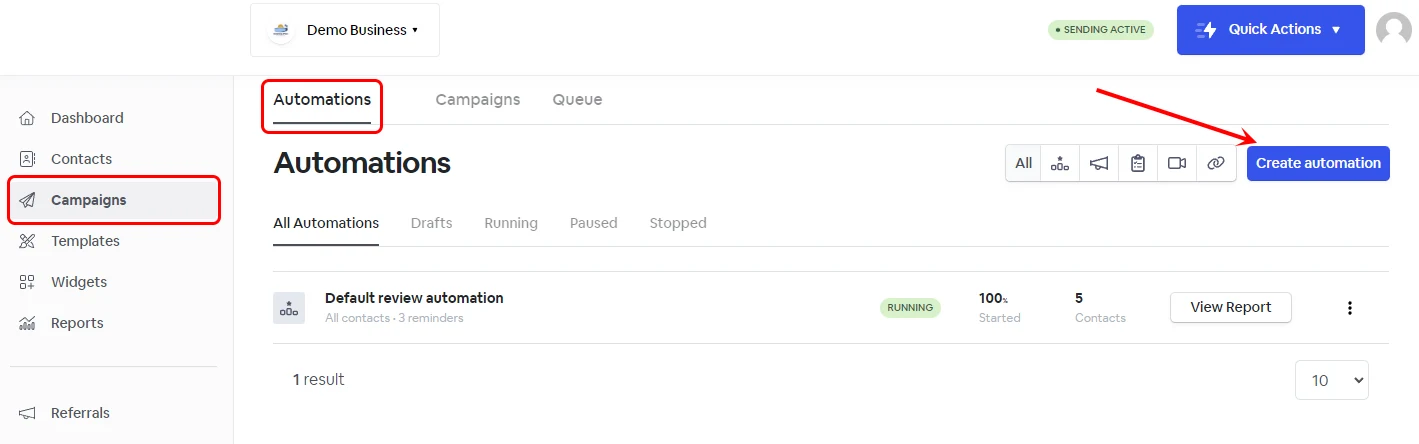
From your account, go to **Campaigns** -> **Create automation**.
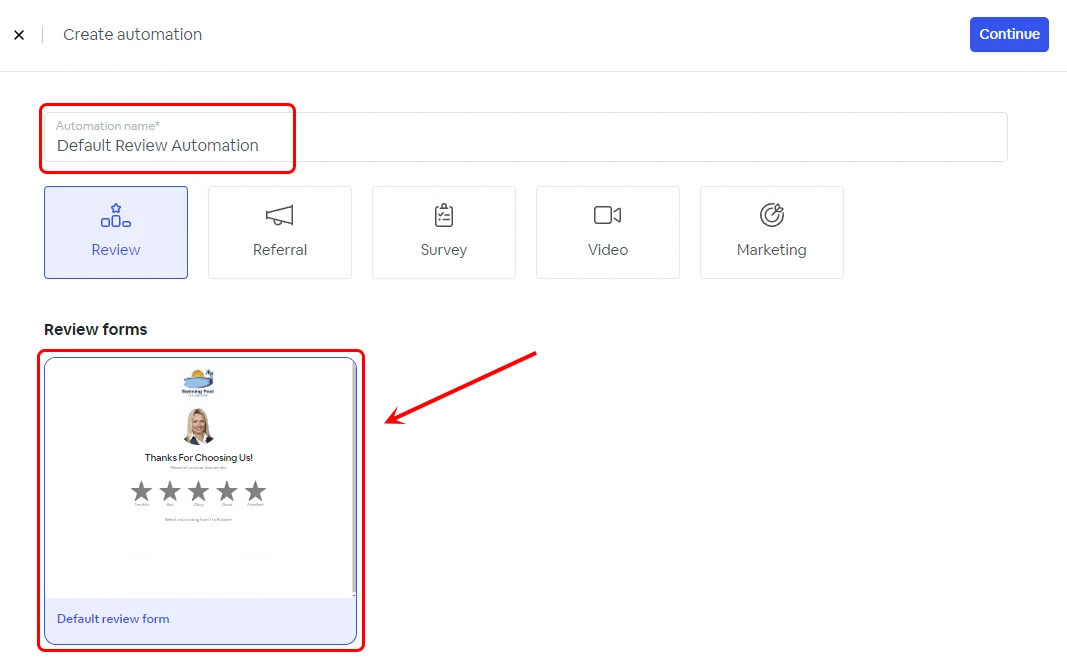
Give it a name and select a review form, then click **Continue.**
### **Selecting the Audience or Segment**
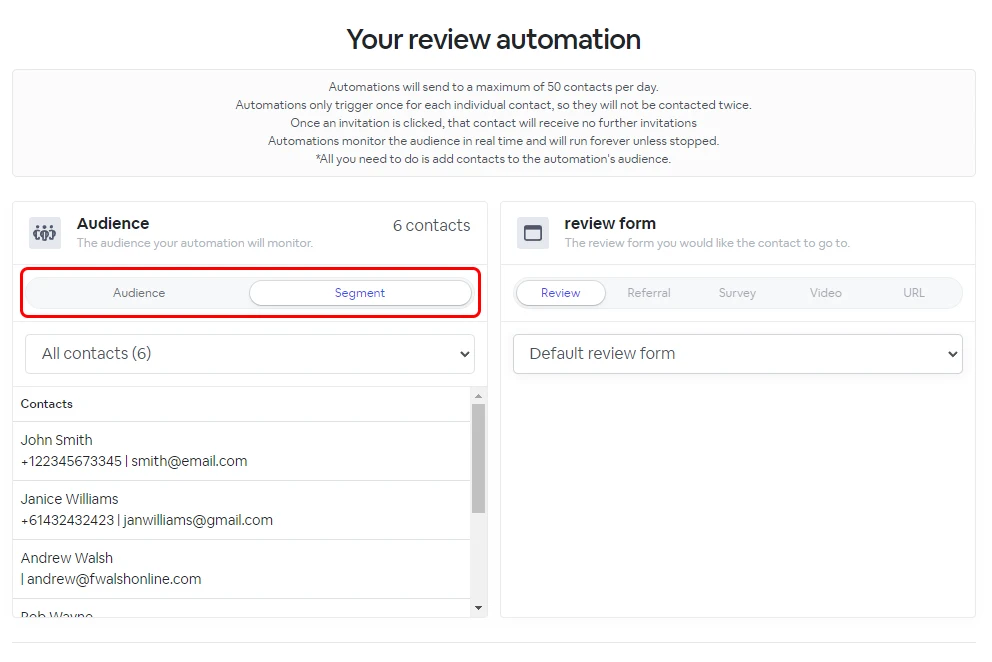
To automate review requests to your contacts, you need to have an Audience or a Segment selected. Once the Automation runs, it will monitor the selected Audience/Segment for contact changes. Suppose a new contact has been added to the selected Audience/Segment. In that case, that contact will be automatically followed up with an email or SMS text message review request as per the automation setup.
**NOTE:** A review automation will not follow up with the same contact twice, regardless of whether the contact belongs to multiple audiences or segments.
### **Invitation reminders**
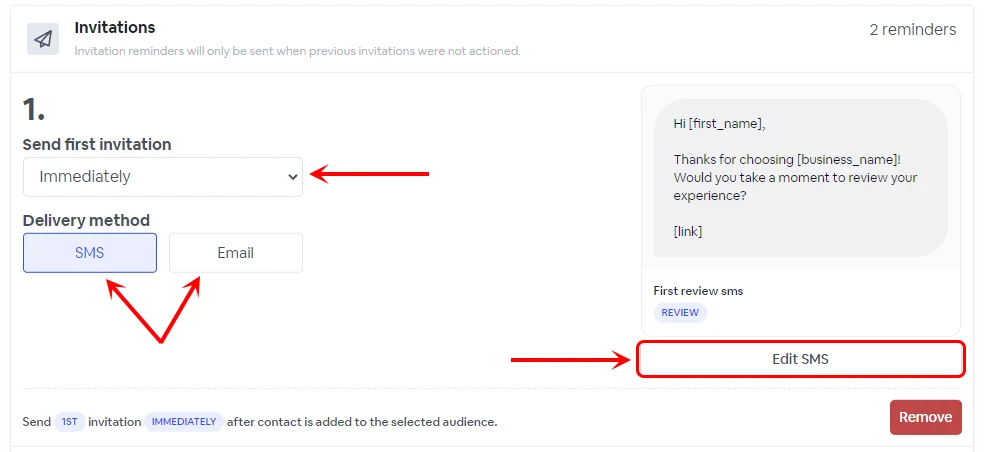
Send the first invitation.
1. Select when to send the first invitation reminder (Immediately or delayed)
2. Select the delivery method (SMS or email).
3. Edit the template ( SMS or email).
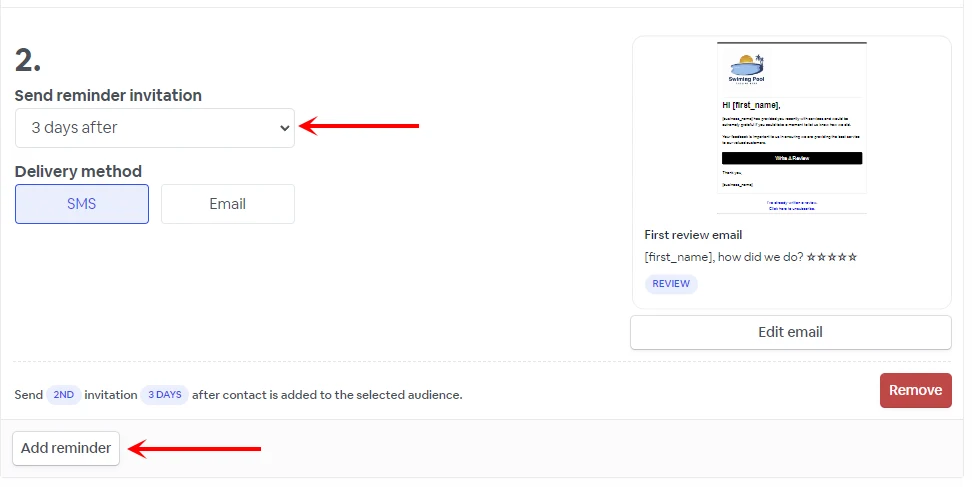
Below you can setup more invitation reminders and select the follow-up delay if needed.
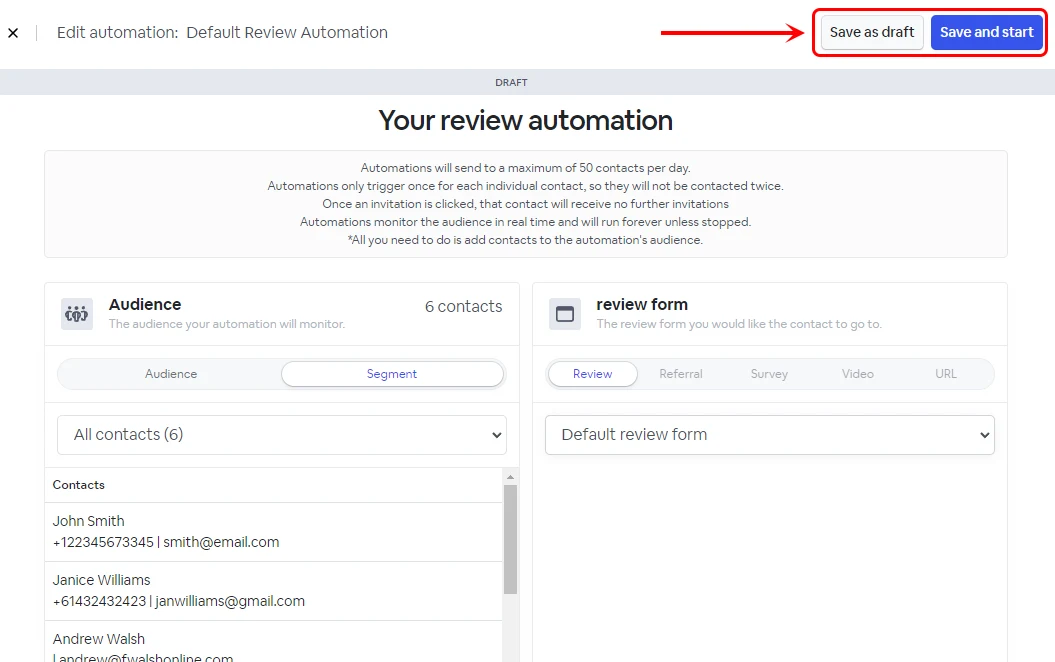
Once your automation is ready, you can save it as a draft or save the changes and start the automation.