# External Contact Forms
> Create a form that adds contacts without anyone logging in to the dashboard.
Source: https://support.amazeful.com/contacts/adding-contacts/external-contact-forms
Documentation index: https://support.amazeful.com/llms.txt
## **What are external forms?**
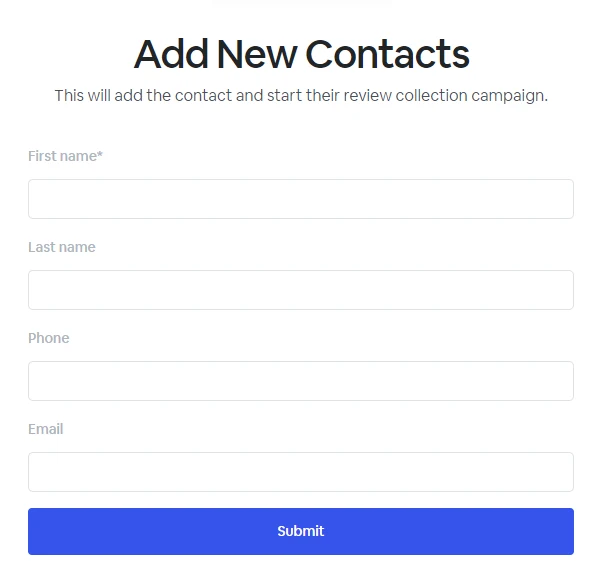
External contact forms are the simplest way you can add a contact without the need to be logged into the dashboard.
## **How to create external forms?**
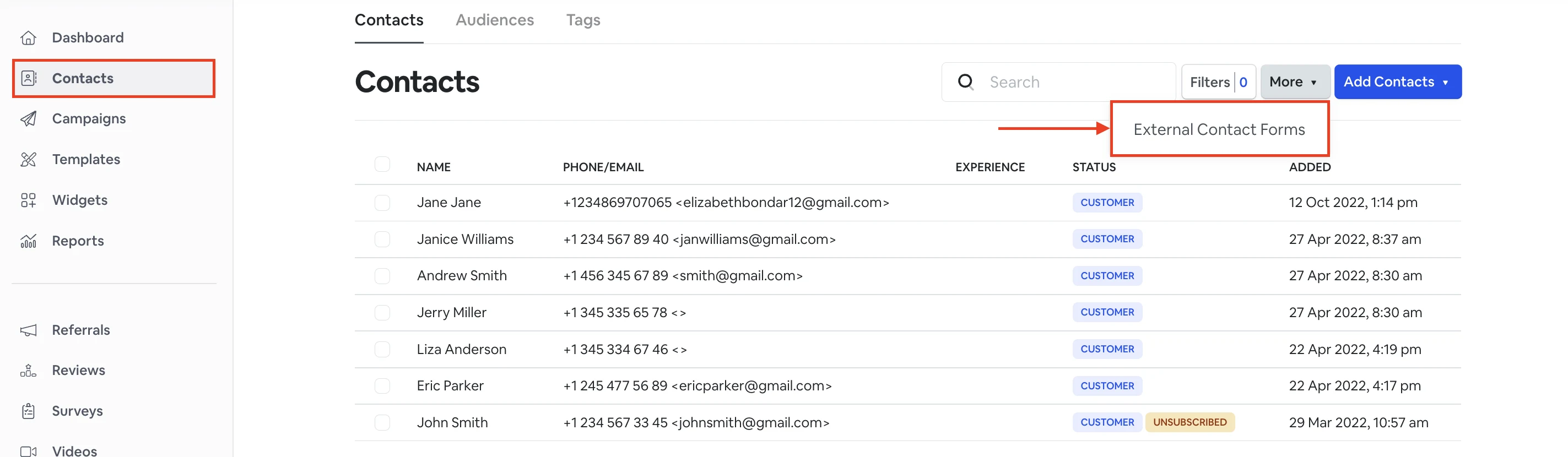
From your dashboard, click **Contacts** -> **More** -> **External Contact Forms**.
Click **Create form.**
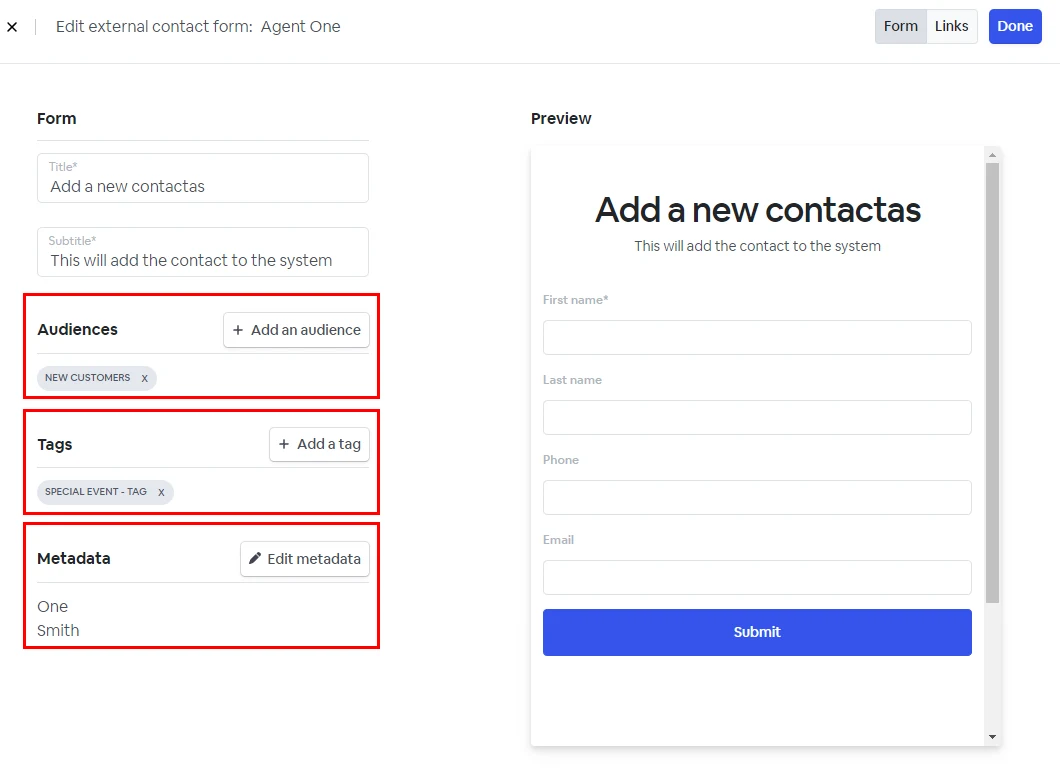
**Form:** Add a title and a subtitle.
**Audience:** Select the audience name you want the contact to be automatically added to.
**Tags:** If you want to group your contacts based on specific criteria, you can add tags to your contact form, and they will be assigned to your new contacts automatically.
**Metadata:** You can add default metadata to your contact form, and it will be added to your new contacts automatically. Please check the [How to use the custom metadata page](https://support.amazeful.com/contacts/managing-contacts/how-to-use-custom-metadata) for more information.
## **How to use the external contact form?**
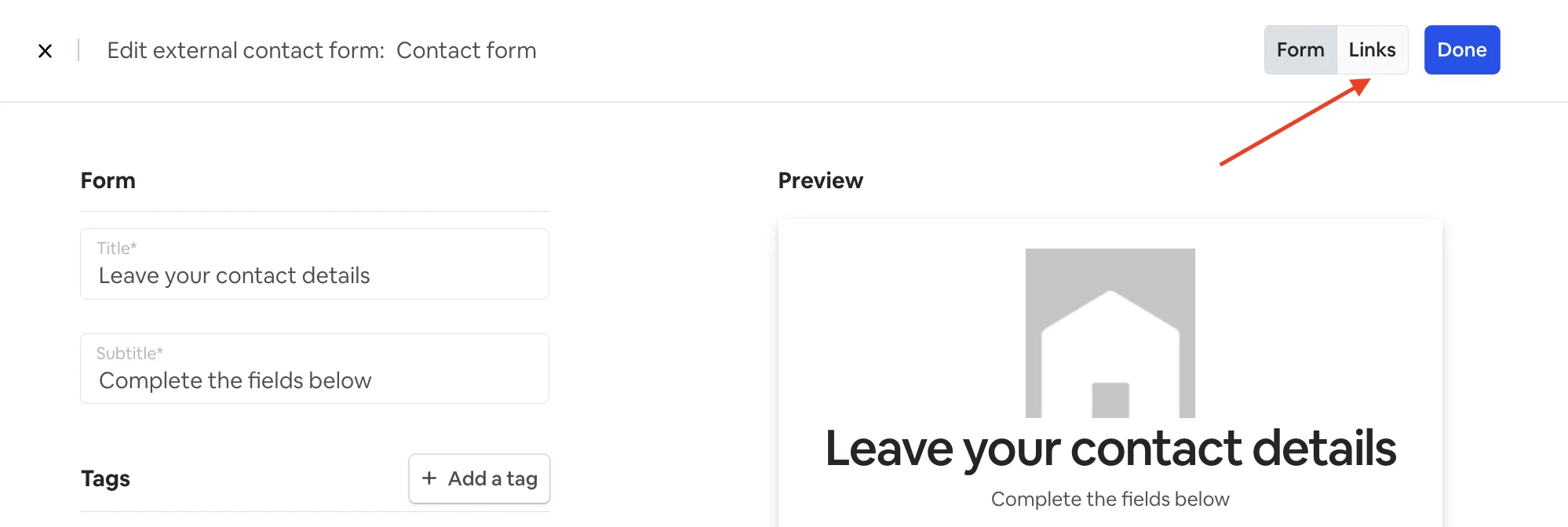
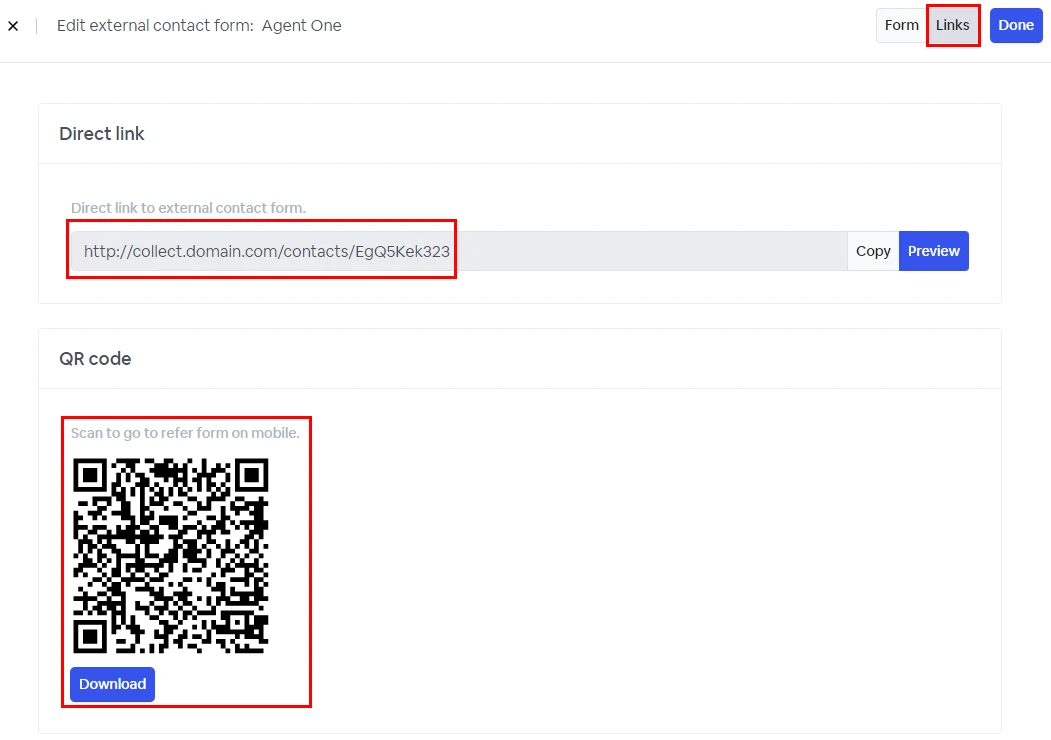
Once your form is ready, click **Links** in the upper right corner.
**Direct link:** You can copy a direct link to your external contact form and send it to your staff.
You can also preview and test to add a contact without needing your external contact form by clicking on the Preview button.
**QR code:** From the links section, you can download a QR code linked to the external contact form as an alternative to the direct link.
## **External form groups**
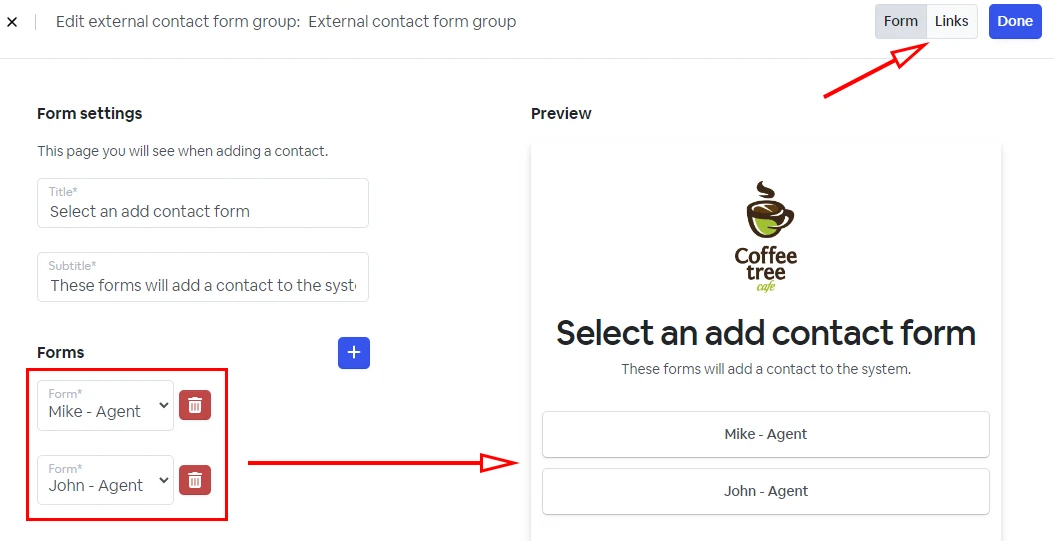
If you have multiple external forms, for example, one for each sales agent and one admin staff adding contact details, you can group all the external forms under one link.
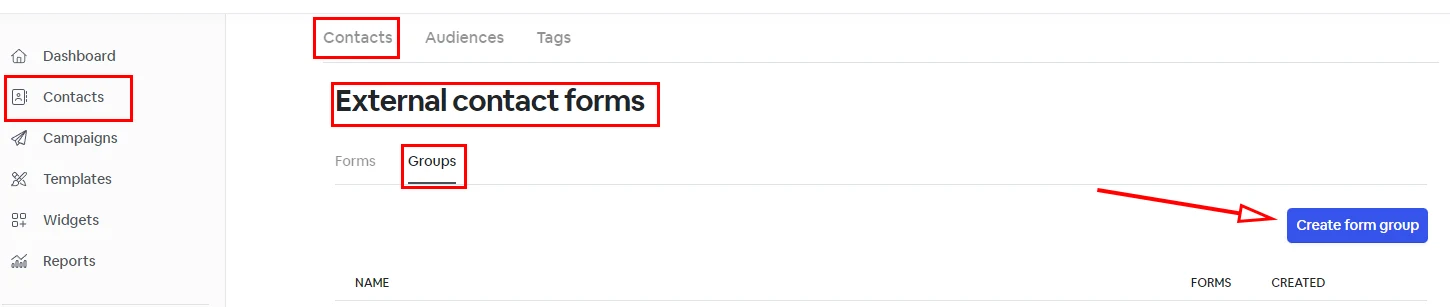
Click **Contacts -> More -> External Contact Forms -> Groups** from your dashboard**.**
You can add your External contact forms using the **+** button.
The URL link for the external group form is located under the **Links** tab.