# Audiences
> Create audiences to group contacts, adding and removing them manually.
Source: https://support.amazeful.com/contacts/audiences-and-segments/audiences
Documentation index: https://support.amazeful.com/llms.txt
## Audiences vs Segments
- [Audience VS Segment](https://support.amazeful.com/contacts/audiences-and-segments/audience-vs-segment)
### What is an Audience
Audiences are the most common way to organize and group contacts, used by 80% of businesses. Audiences require manual addition and removal of contacts.
Usage of audiences:
\- Separate retail and commercial contacts.
\- Group contacts based on the internal agent/salesperson.
## 1. Creating an audience
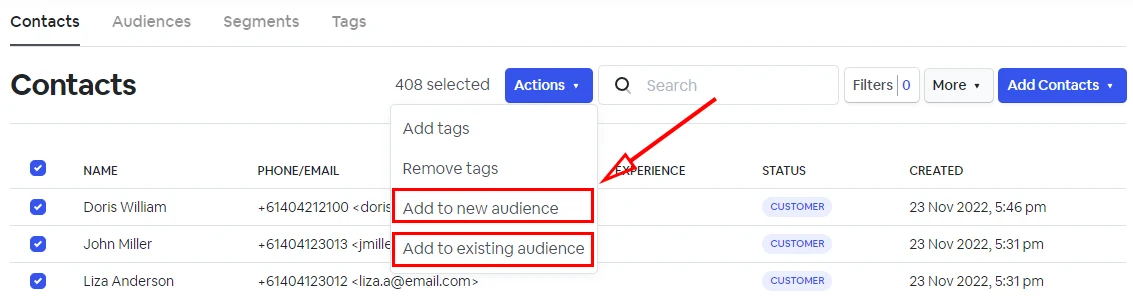
A static audience implies a manual adding or removing contacts. To create a static audience go to the **'Contacts'** tab, manually select the contacts that you need > click **'Actions'** > **'Add to new audience' OR Add to existing audience.**
Choose a name for your audience and click **'Add to new audience'** or click '**Add to existing audience**' and select the audience name.
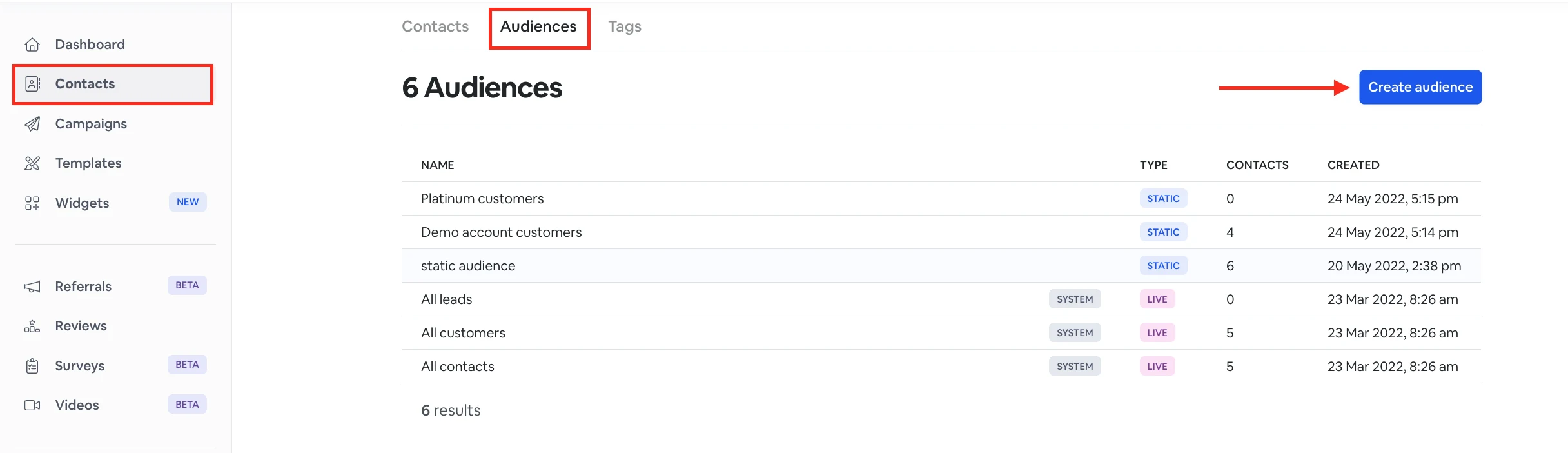
You can also create a static audience from the '**Audiences'** section.
To do this, go to **'Contacts'** > '**Audiences'** > **'Create audience'.** Give a name to your audience and click **'Save'.**
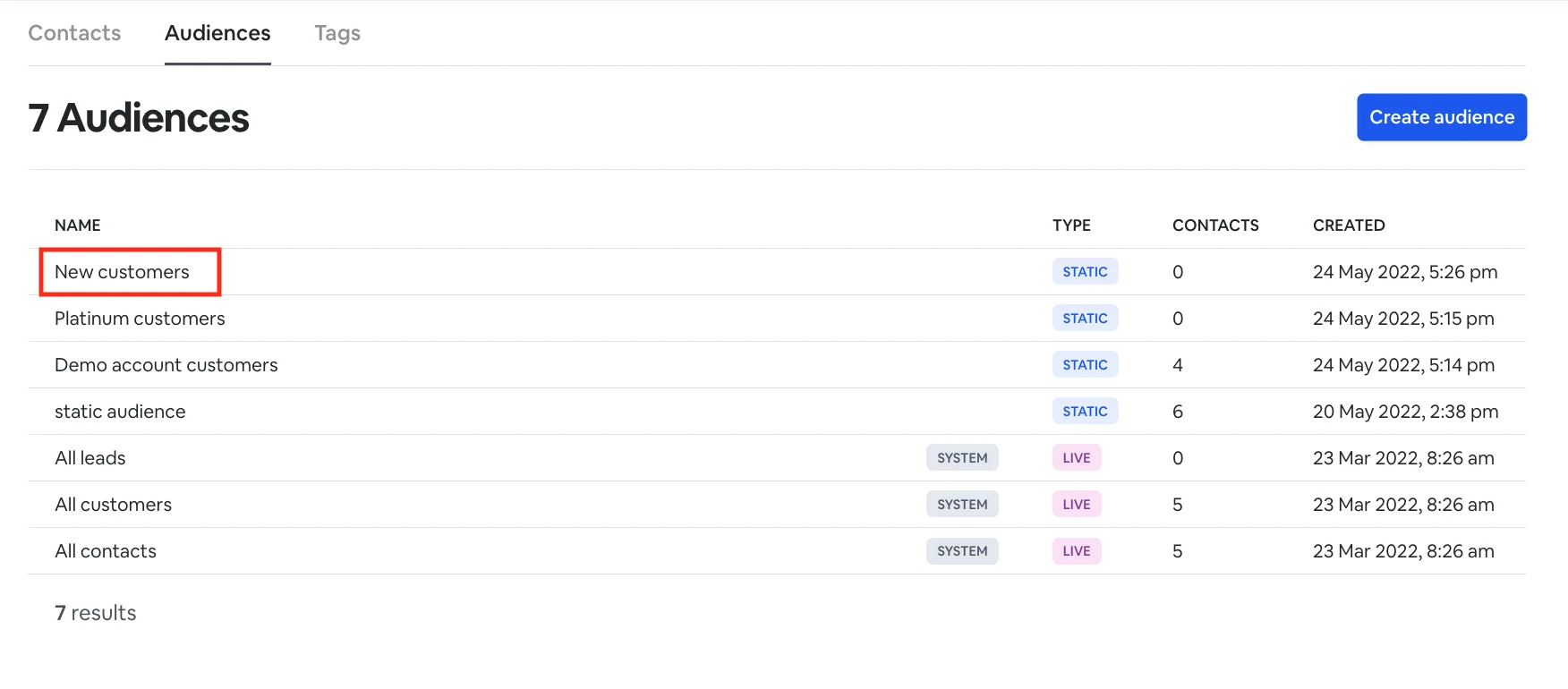
Now, click on the audience you've just created from the list and add contacts.
## 2. Adding contacts to an audience
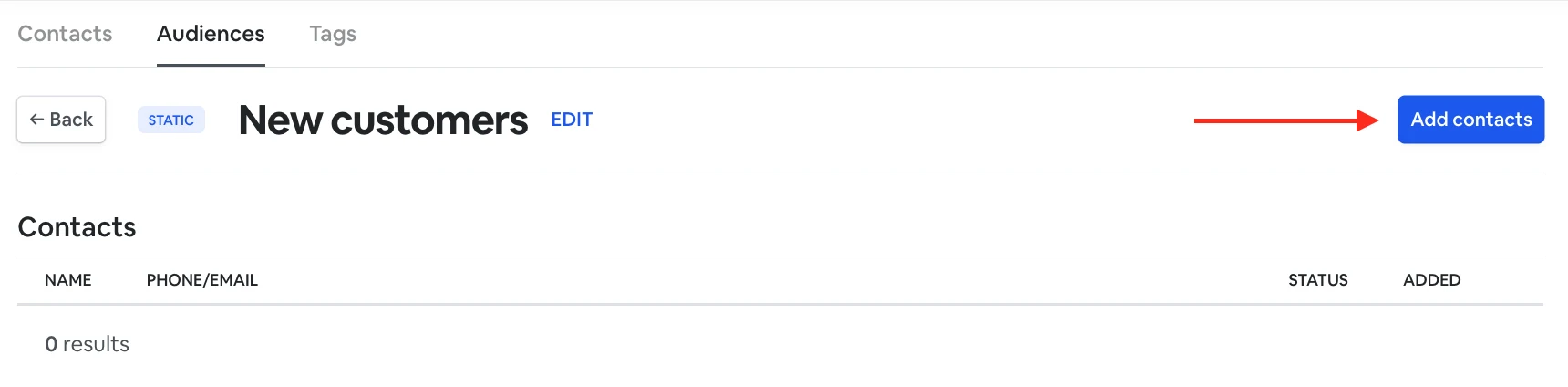
You can add the contacts you need to your audience using the Add contacts button inside the audience.
## 3. Removing contacts from an audience
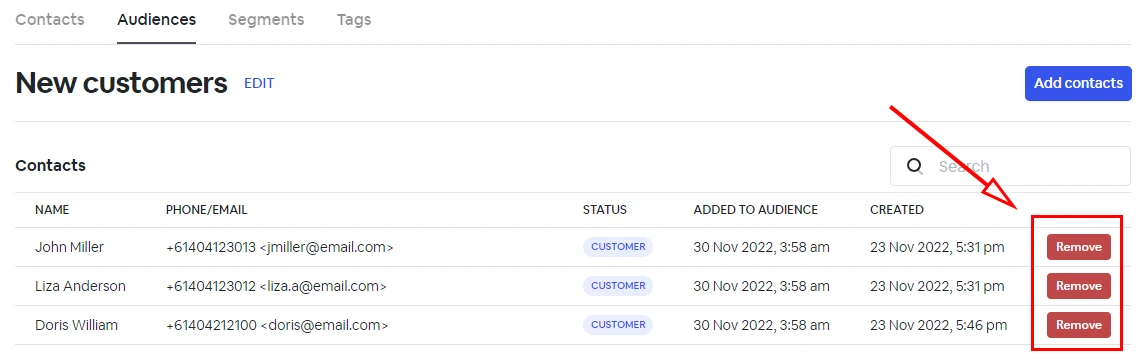
Use the remove button next to each contact to remove it from this audience.
> **Info:**
>
> #### NOTE: If a contact is unsubscribed, it will also be removed from all audiences.
## Extracting the Audience ID from the Audience URL
To obtain the **Audience ID** for API usage, follow these steps:
1. Navigate to **Contacts** in the Amazeful platform.
2. Click on **Audiences**.
3. Select the desired **Audience Name**.
4. The **Audience ID** is the last segment of the URL in your browser.
**Example:**
When viewing an audience, the URL will appear as:
\*\*
In this case, the **Audience ID** to use in API requests is: **AbCd1234**