# Web Chat Widget
> Set up a web chat widget that sends website visitors' chats straight to your inbox.
Source: https://support.amazeful.com/inbox/getting-started-with-inbox/web-chat-widget
Documentation index: https://support.amazeful.com/llms.txt
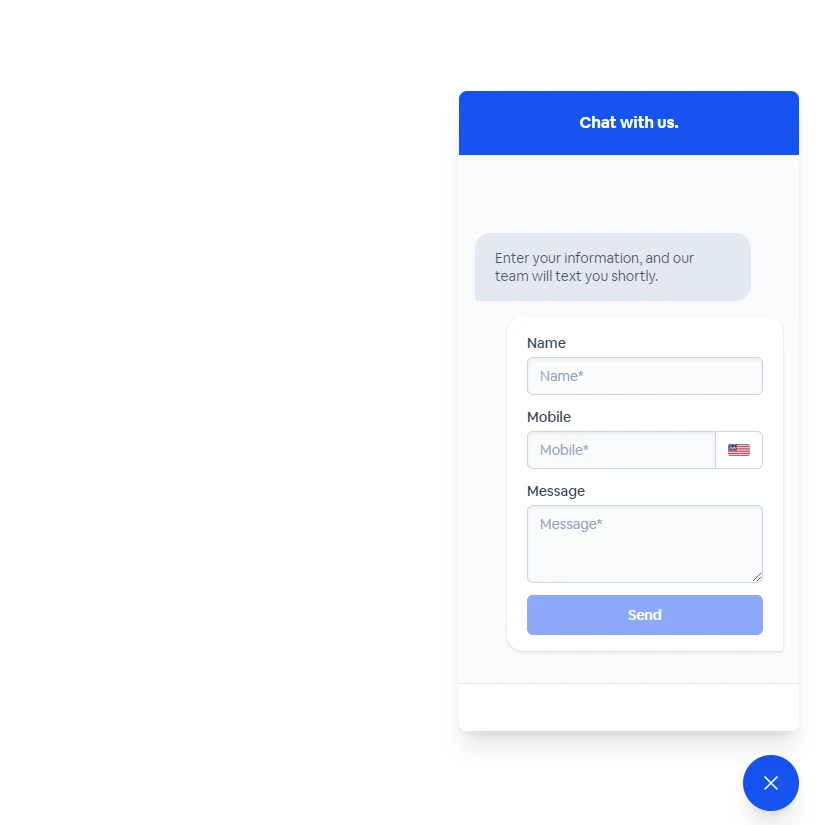
The web chat widget lets you interact with your website visitors over text. You’ll be able to improve your website experience by answering questions, scheduling appointments, and selling products all while on the go.
All leads & customers who come through the web chat widget will go directly into your inbox.
## Setup the web chat widget
To setup the web chat widget:
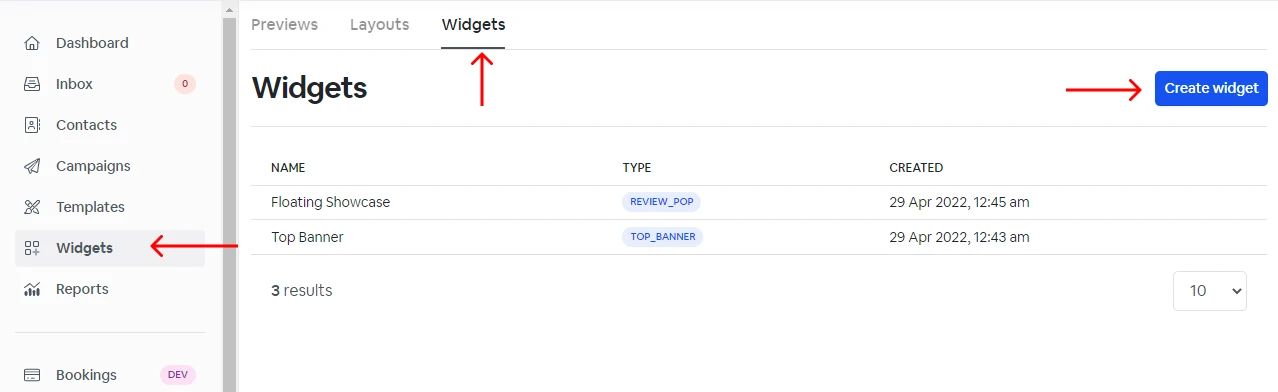
1. Go to Widgets.
2. Select the Widgets tab.
3. Select the Create Widget button.
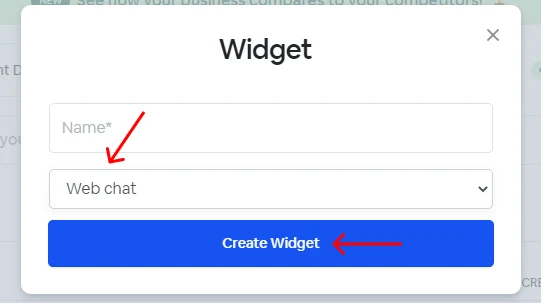
4. Select Web Chat from the dropdown.
5. Click Create Widget.
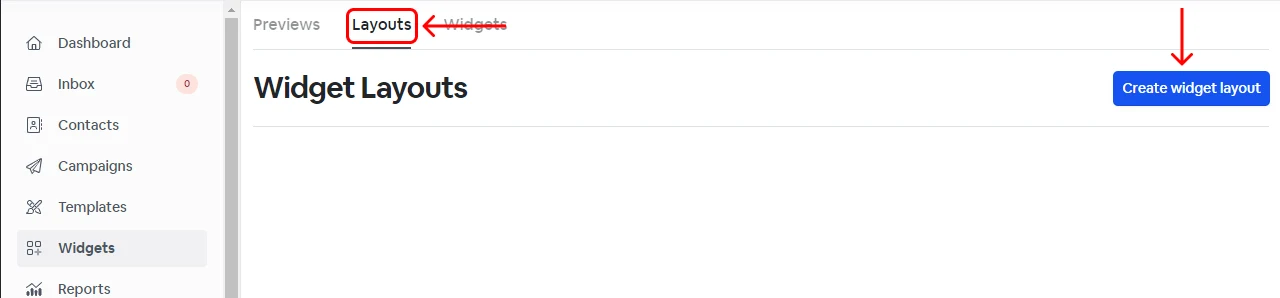
6. Go to the Layouts tab.
7. Click Create Layout.
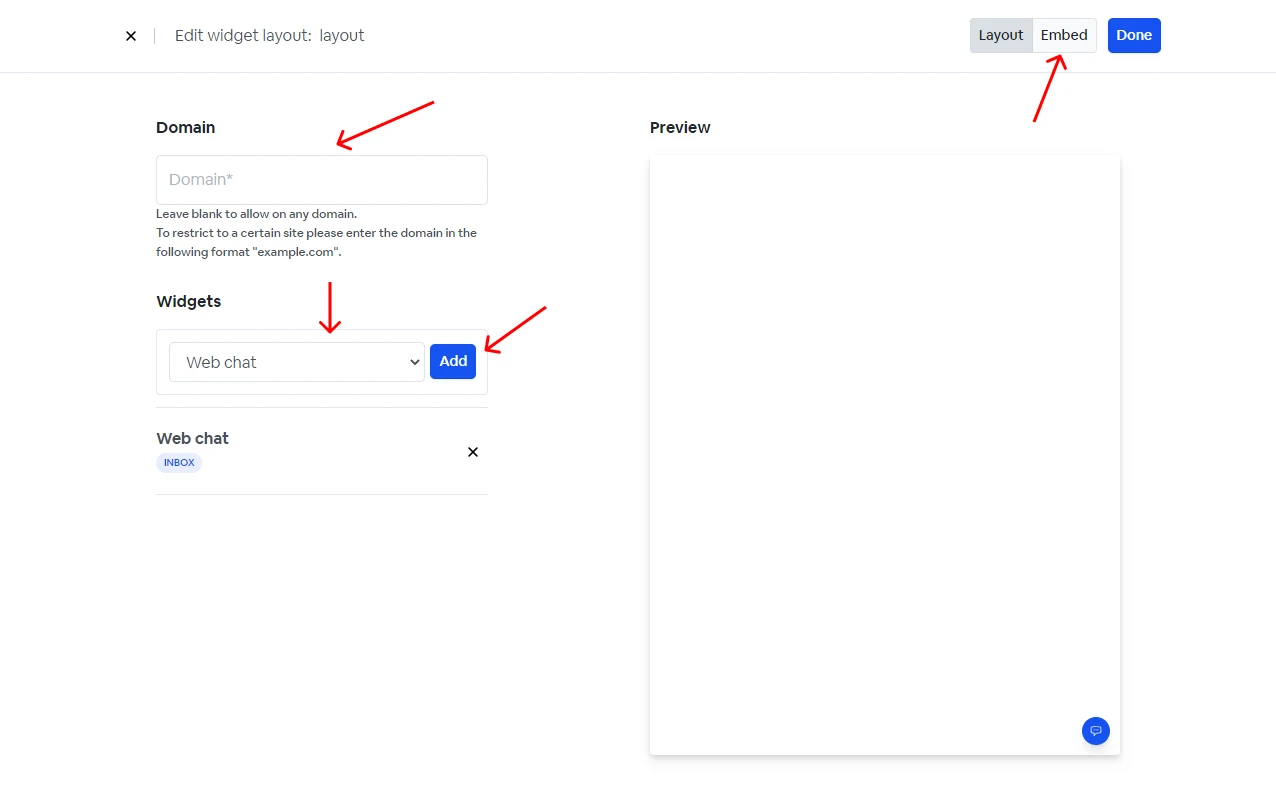
8. Enter your domain (this restricts the widget layout from being used on another website). \*Optional step.
9. Select Web chat from the dropdown.
10. Click Add.
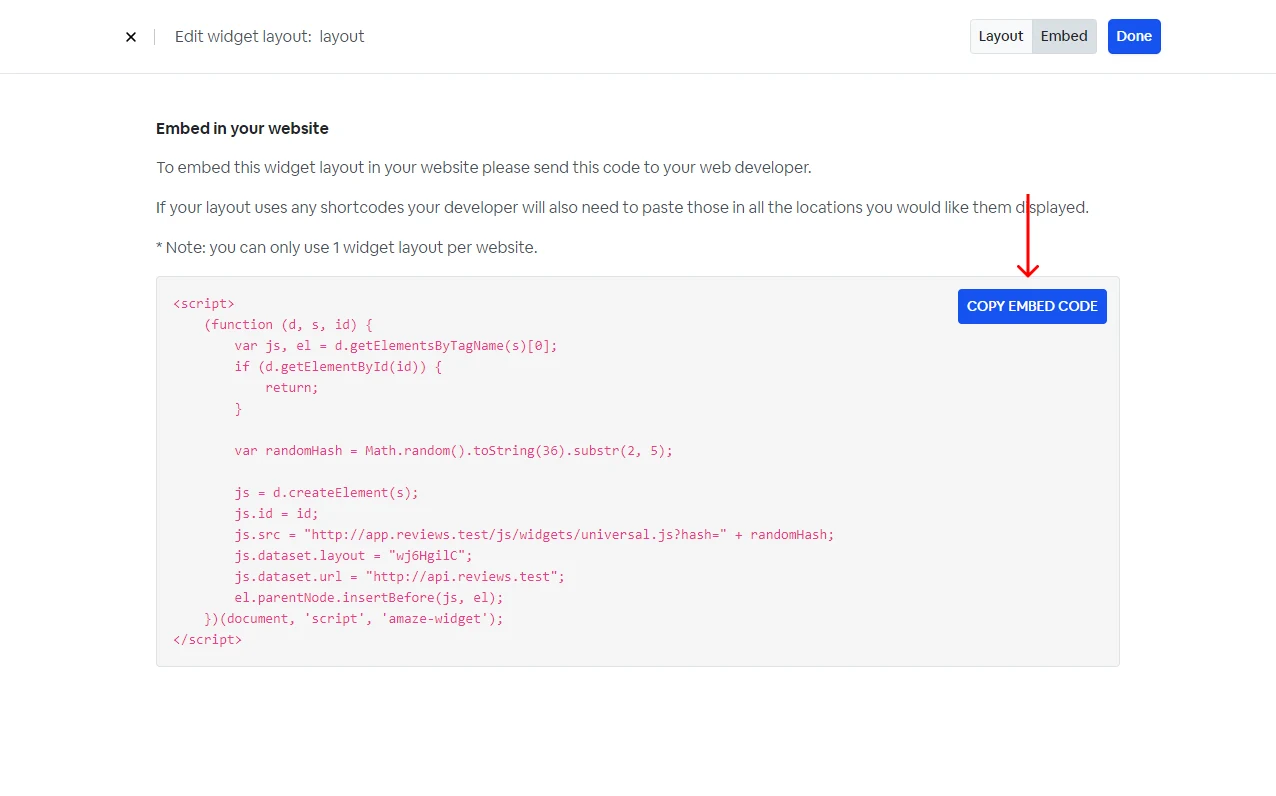
11. Go to the embed tab.
12. Click copy embed code.
13. You are now ready to install the web chat widget on your website.
## Install the web chat widget on your website
### Generic installation
To install the web chat widget on your site:
Sign in to your website's dashboard.
1. Find the HTML editor that lets you edit the contents of your site.
2. Copy and paste the embed code snippet in the head.
3. Save the changes.
### Platform-specific installation
- [Installing Widgets on WordPress](https://support.amazeful.com/other/widgets/installing-widgets-on-wordpress)
- [Installing Widgets on Shopify](https://support.amazeful.com/other/widgets/installing-widgets-on-shopify)
- [Installing Widgets on Wix](https://support.amazeful.com/other/widgets/installing-widgets-on-wix)