# Video testimonials
> Collect video testimonials from customers and showcase them on your website.
Source: https://support.amazeful.com/other/video-testimonials
Documentation index: https://support.amazeful.com/llms.txt
## Overview
With no technical knowledge, you can collect video testimonials from your customers and showcase them on your website.
## How to c**reate a** video testimonial form?
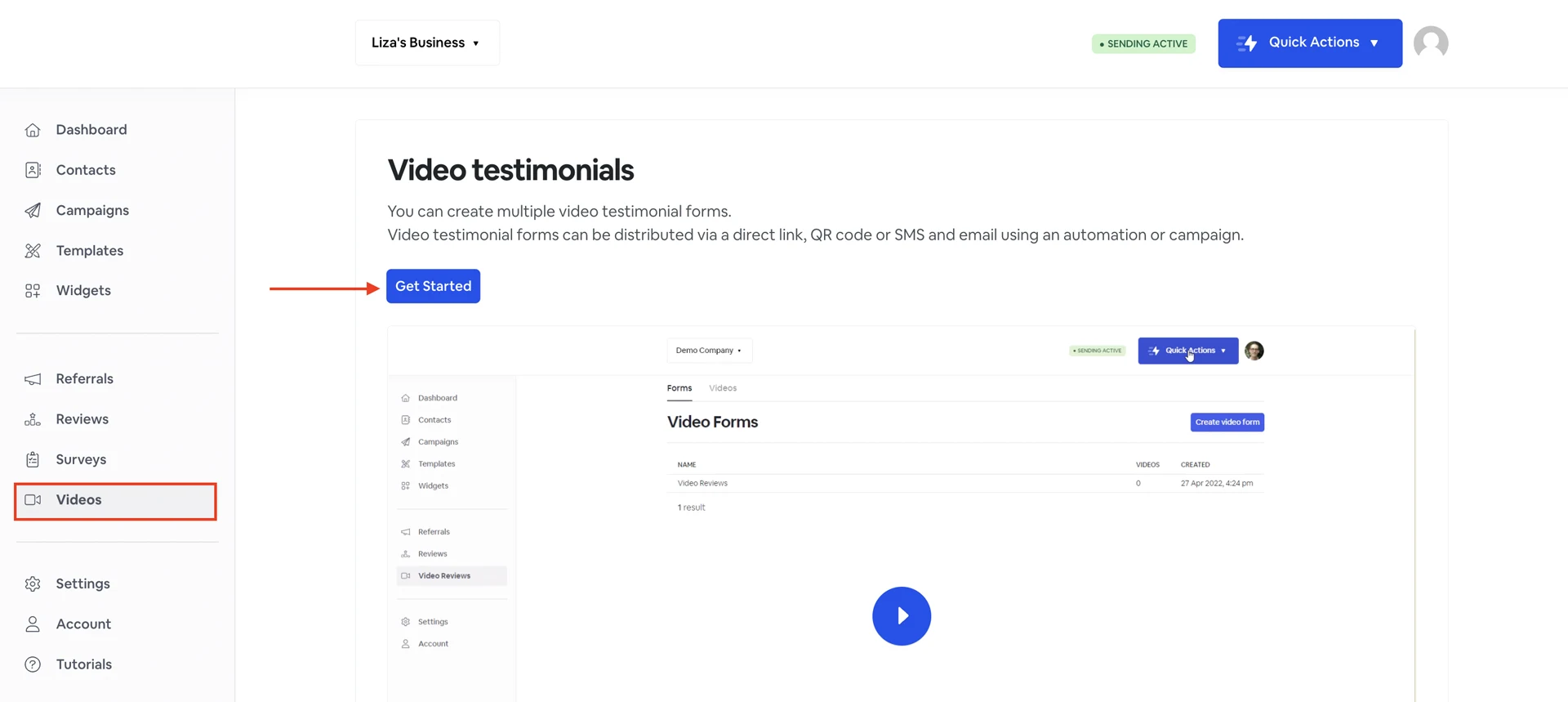
From your dashboard, go to **Videos** -> **Get Started .** Give your video form a name and click **Create video form.**
## **Landing Page**
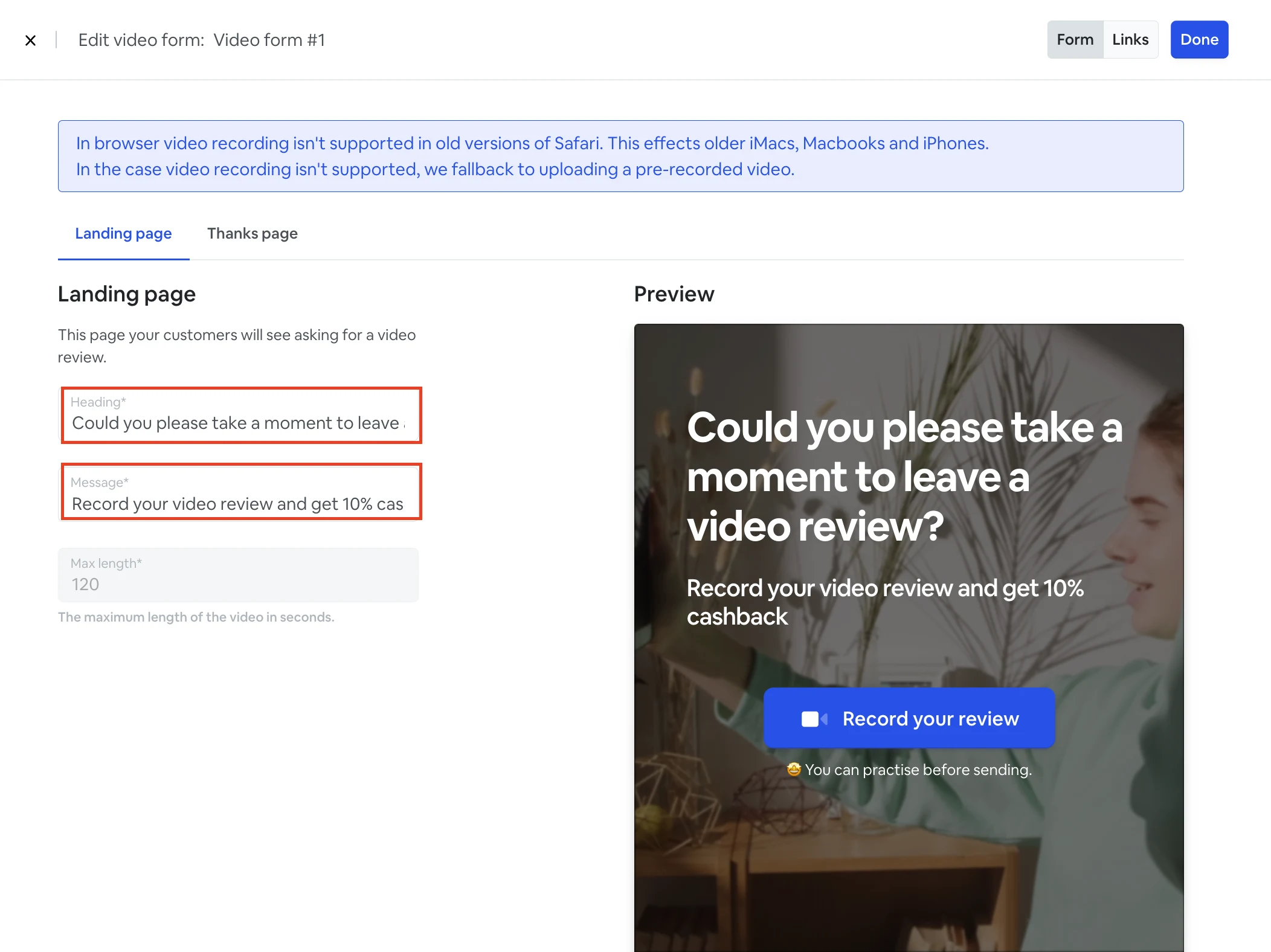
The landing page is the first page your customers will see once they click on the video review link. Here you can customize the heading and the message.
## **Thanks Page**
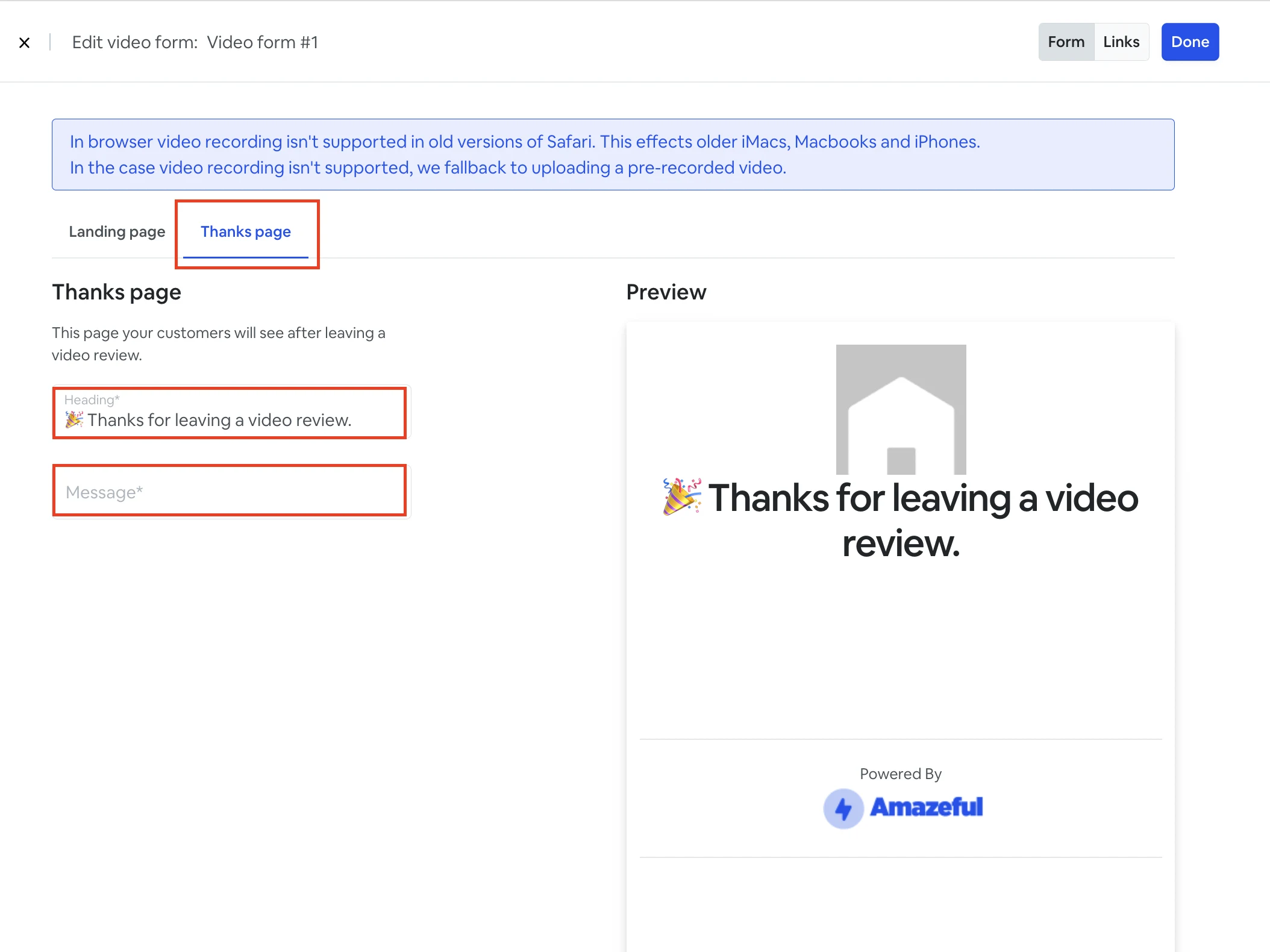
Once a customer left a video review he will be redirected to the Thanks Page. Here you can customize the heading and the message for your Thanks Page.
## **Links**
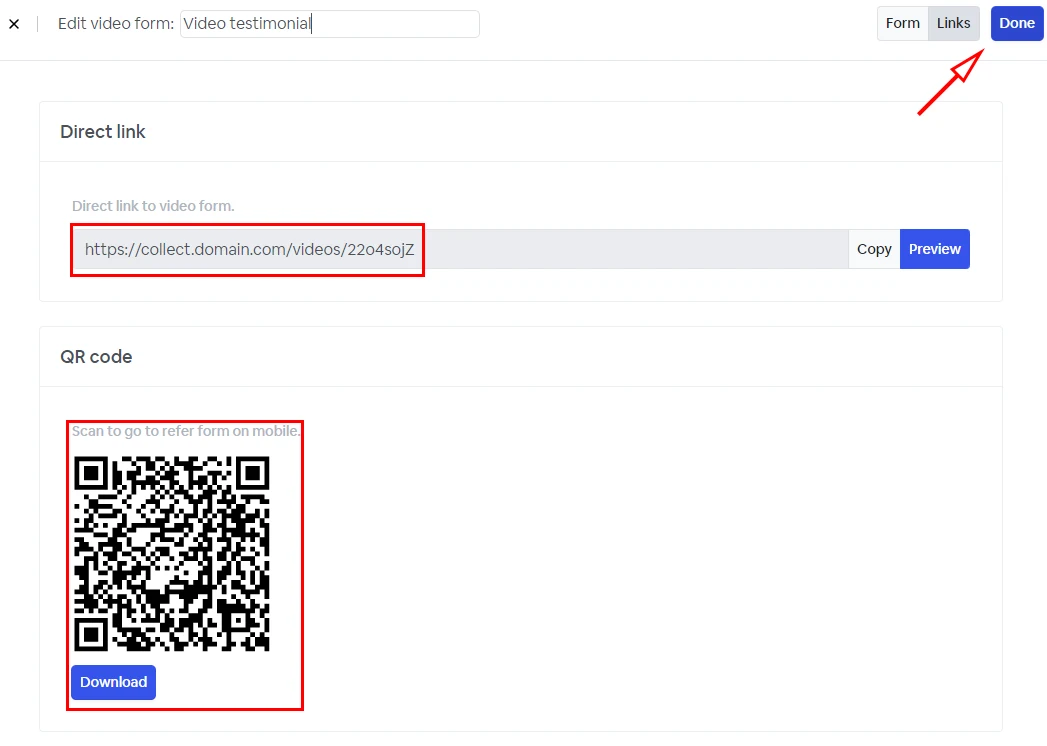
Once your Landing page and Thanks page is ready, you can go to **Links** to copy or preview your video review form. You can also download a QR code for your video review form.
To save a video review form click **Done.**
## How to send a video testimonial link to your contacts?
Before selecting the delivery method we need to create the SMS video template.
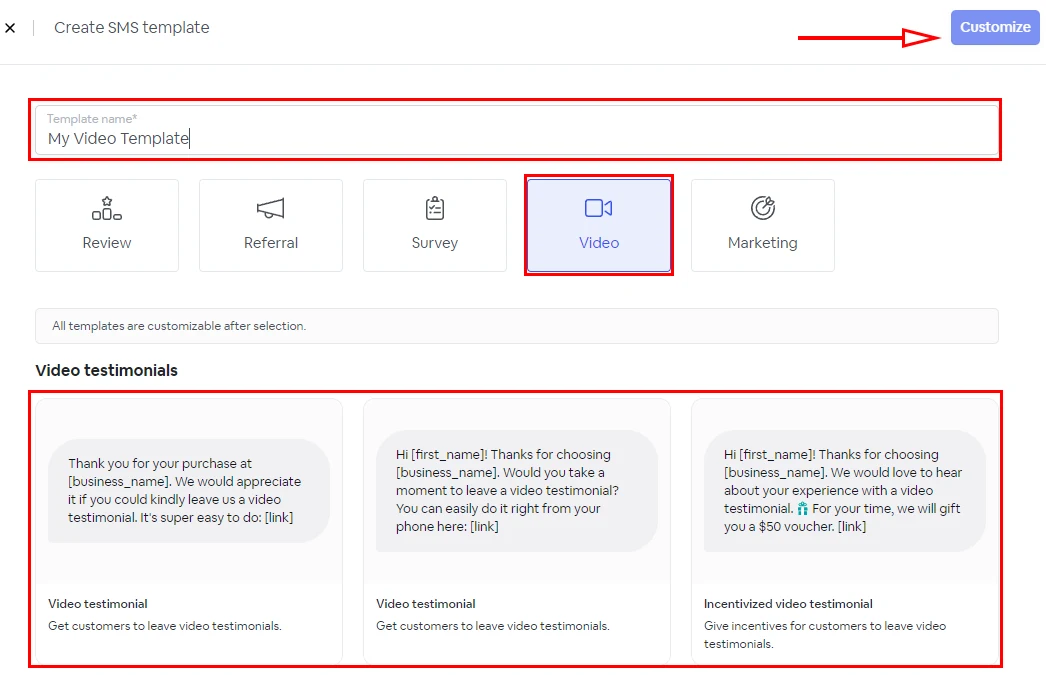
Go to **Templates** and click **Create template** then click the **Create SMS template** button.
In the pop-up window, give your template a name, select the **Video** tab, choose one of the predefined **Video testimonials** templates, then click **Customize**.
## Send the video testimonial link using the quick actions.
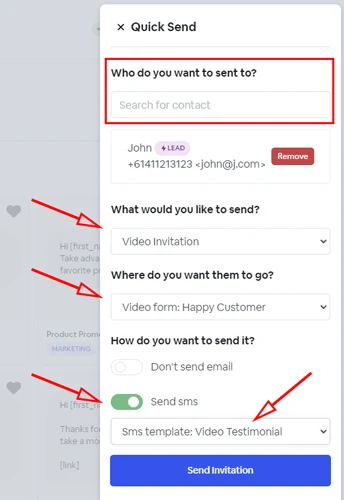
Click **Quick actions** -> **Send to existing contact**. Search and select the contact you want to send the video testimonial.
* In the section **What would you like to send?** select Video Invitation
* In the section **Where do you want them to go?** select the video form you just created.
* In the section **How do you want to send it?** select **Send SMS** and choose the video testimonial template you just created.
* Click **Send Invitation**
The above action will send one video testimonial request via SMS to your contact.
## Send the video testimonial link using a Campaign or an Automation.
The easiest way to send a video testimonials to a group of contacts is via our campaigns or automation feature.
To see which delivery method suits you business needs please see the Automations and Campaigns tutorials.
- [Automations Overview](https://support.amazeful.com/campaigns/automations-overview)
- [Campaigns Overview](https://support.amazeful.com/campaigns/campaigns-overview)
NOTE: max video length is 120 seconds.