# Installing Widgets on Shopify

> Add your widget embed code to your Shopify theme.

Source: https://support.amazeful.com/other/widgets/installing-widgets-on-shopify
Documentation index: https://support.amazeful.com/llms.txt

> **Info:**
>
> If you haven't created your website embed code yet, [please view the setup instructions](https://support.amazeful.com/inbox/getting-started-with-inbox/web-chat-widget).


1. Sign into your Shopify account.
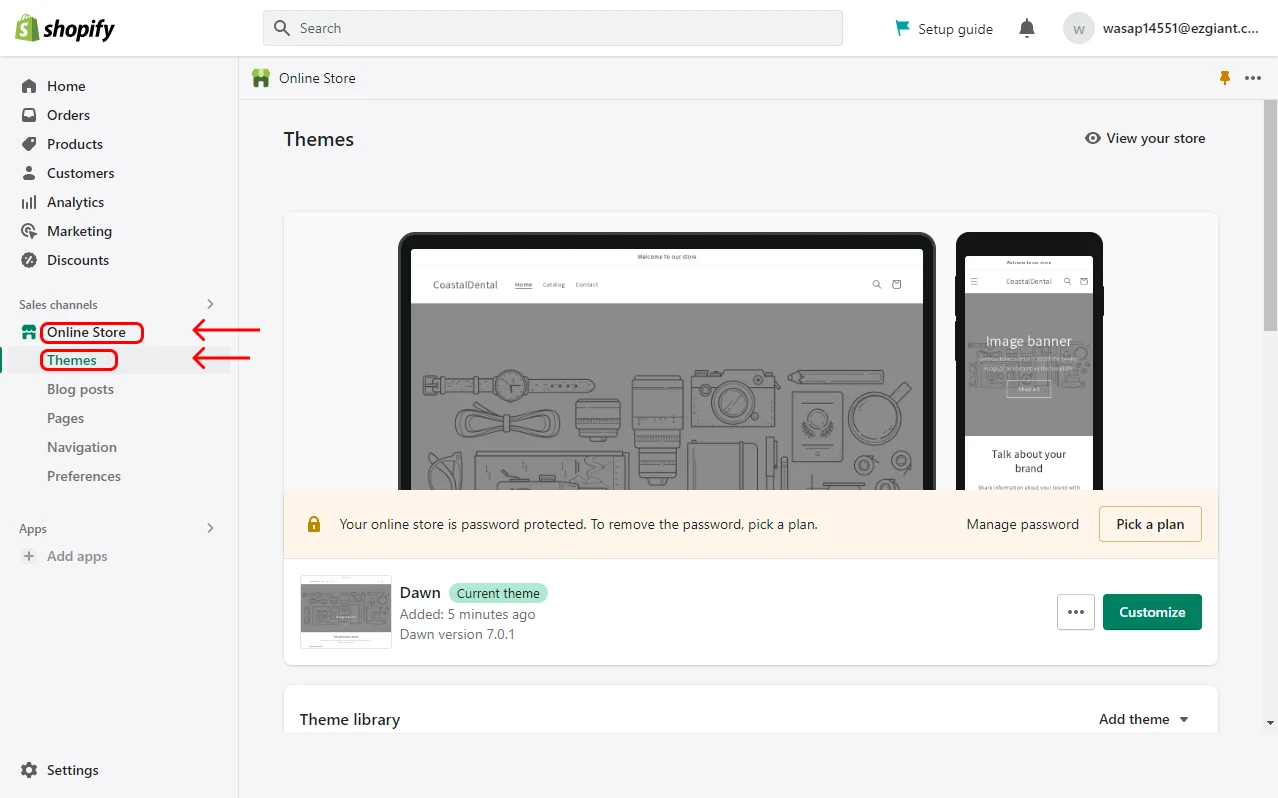
2. Select **Online Store** and then **Themes** from the left hand menu.

<figure><img src="https://support.amazeful.com/files/GgcOj9BzVXMLB01r6GWh.webp" alt=""><figcaption></figcaption></figure>

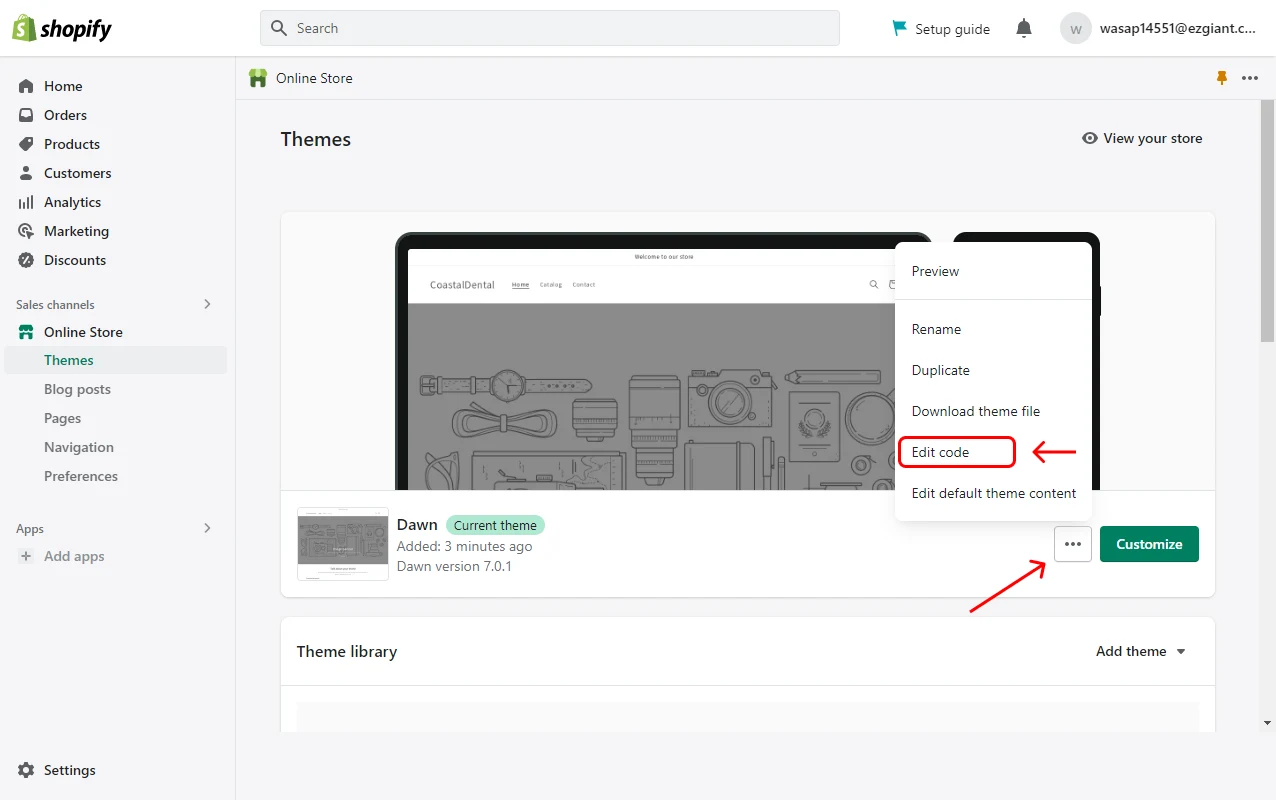
3. Click the **Actions** button on your current theme and then **Edit Code** from the dropdown.

<figure><img src="https://support.amazeful.com/files/yWHyybNpVqcKpkT9ztym.webp" alt=""><figcaption></figcaption></figure>

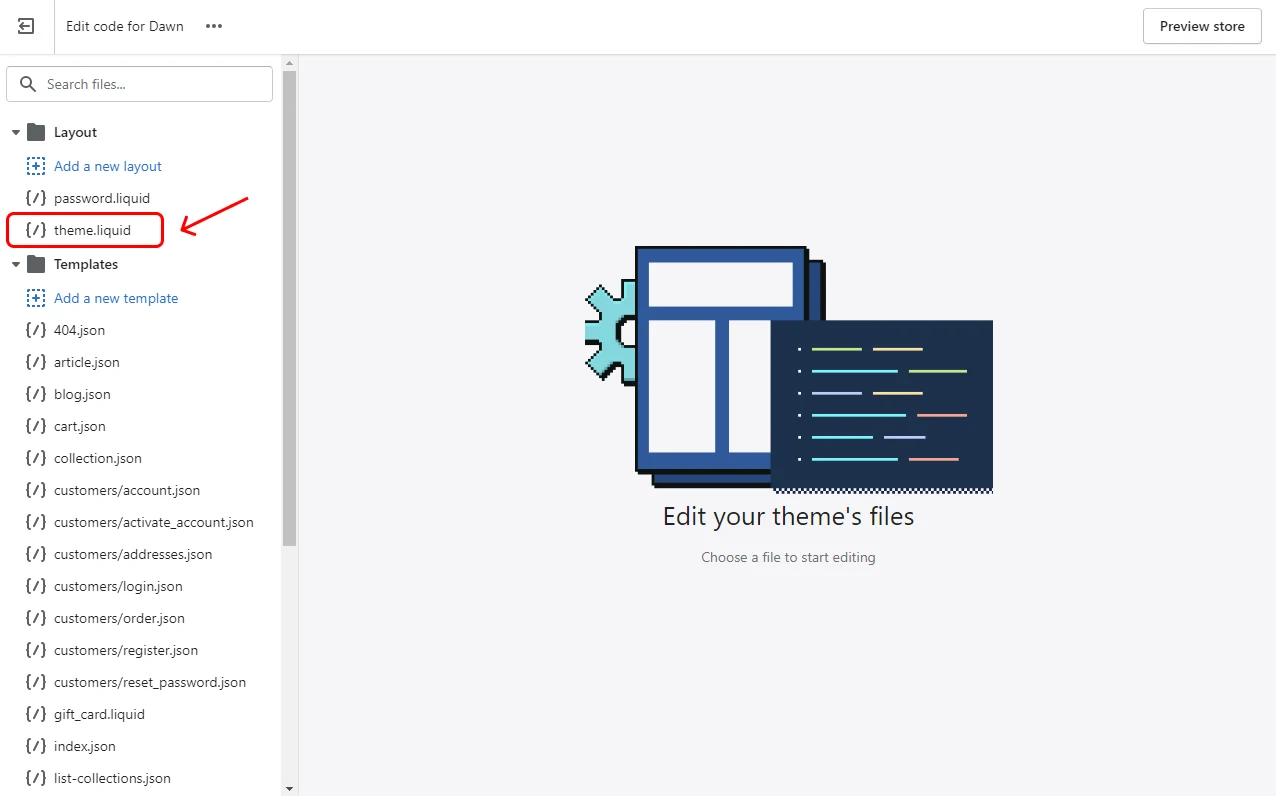
4. Select **{/} theme.liquid** under the **Layout** folder from the left hand menu.

<figure><img src="https://support.amazeful.com/files/mtqSStCkieiKSmxi4GWw.webp" alt=""><figcaption></figcaption></figure>

5. Scroll all the way to the bottom of the code on the right hand side until you read the end. You're looking for text that reads **\</body>**.

<figure><img src="https://support.amazeful.com/files/5PJk25Tsl8GlkxusaKIe.webp" alt=""><figcaption></figcaption></figure>

6. Paste the embed code on the line above the **\</body>** tag.
7. Click **Save**.

<figure><img src="https://support.amazeful.com/files/H3pmwUrKIF9fywB6i9Qs.webp" alt=""><figcaption></figcaption></figure>

You're done! If you refresh your website, you should now see your Web Chat Widget.


> **Info:**
>
> If you want to make changes to what widgets are displayed on your website. You can do this by editing the layout in your dashboard.