# Installing Widgets on WordPress
> Add your widget embed code to a WordPress site using a plugin.
Source: https://support.amazeful.com/other/widgets/installing-widgets-on-wordpress
Documentation index: https://support.amazeful.com/llms.txt
> **Info:**
>
> If you haven't created your website embed code yet, [please view the setup instructions](https://support.amazeful.com/inbox/getting-started-with-inbox/web-chat-widget).
1. Sign into your WordPress account.
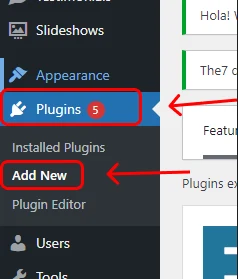
2. Click **Plugins** on the left menu and then **Add New**.
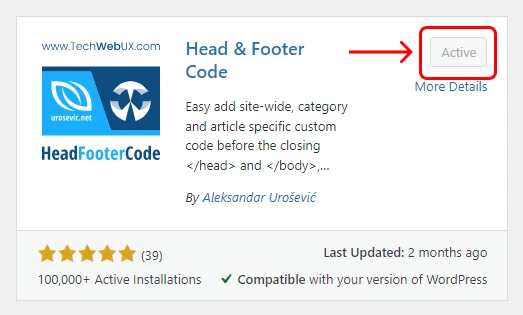
3. Search for "Head & Footer Code", and click **Install** then **Activate**.
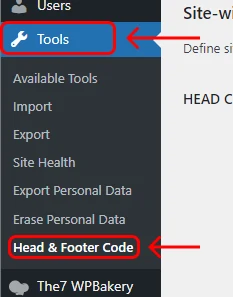
4. Click **Tools** in the left-hand menu and then **Head & Footer Code**.
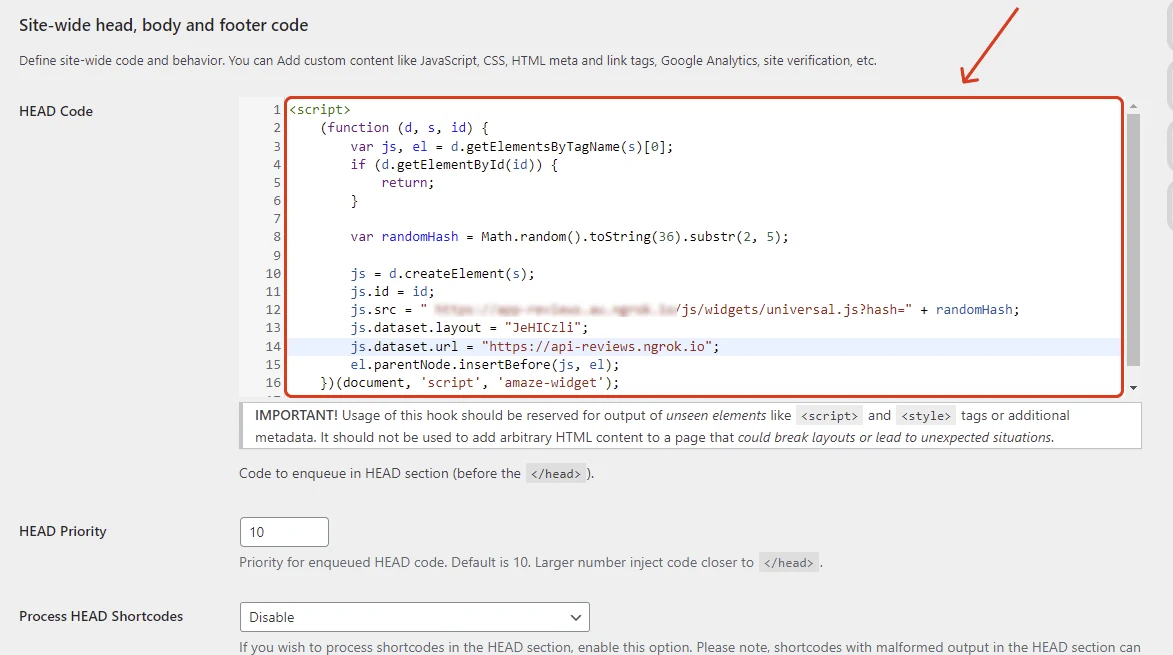
5. Paste your embed code into the first text field labelled "HEAD Code".
[How to get the Embed Code](https://support.amazeful.com/other/widgets/overview#how-to-embed-a-widget-layout-on-the-website)?
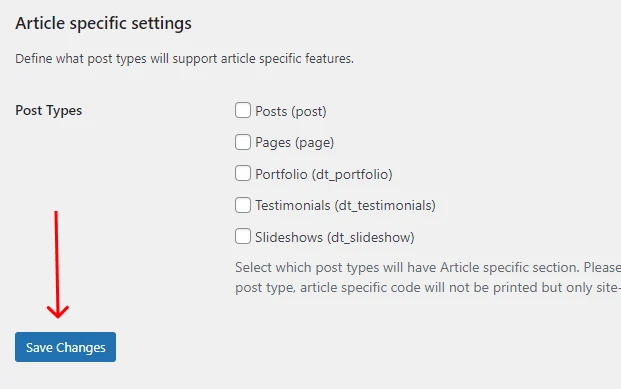
6. Scroll to the bottom and click **Save Changes**.
You're done! If you refresh your website, you should now see your Web Chat Widget.
> **Info:**
>
> If you want to make changes to what widgets are displayed on your website. You can do this by editing the layout in your dashboard.