# Widgets overview
> Learn what widgets can show on your website and how to create them.
Source: https://support.amazeful.com/other/widgets/overview
Documentation index: https://support.amazeful.com/llms.txt
## **Overview**
A widget is a small functional block that is displayed on a specific page or on all pages of a website and is always in the users' field of view, making them perfect for posting important information and notifications.
Our website widgets can display a collection of your business reviews, showcase special offers, embed surveys and video testimonials on your site.
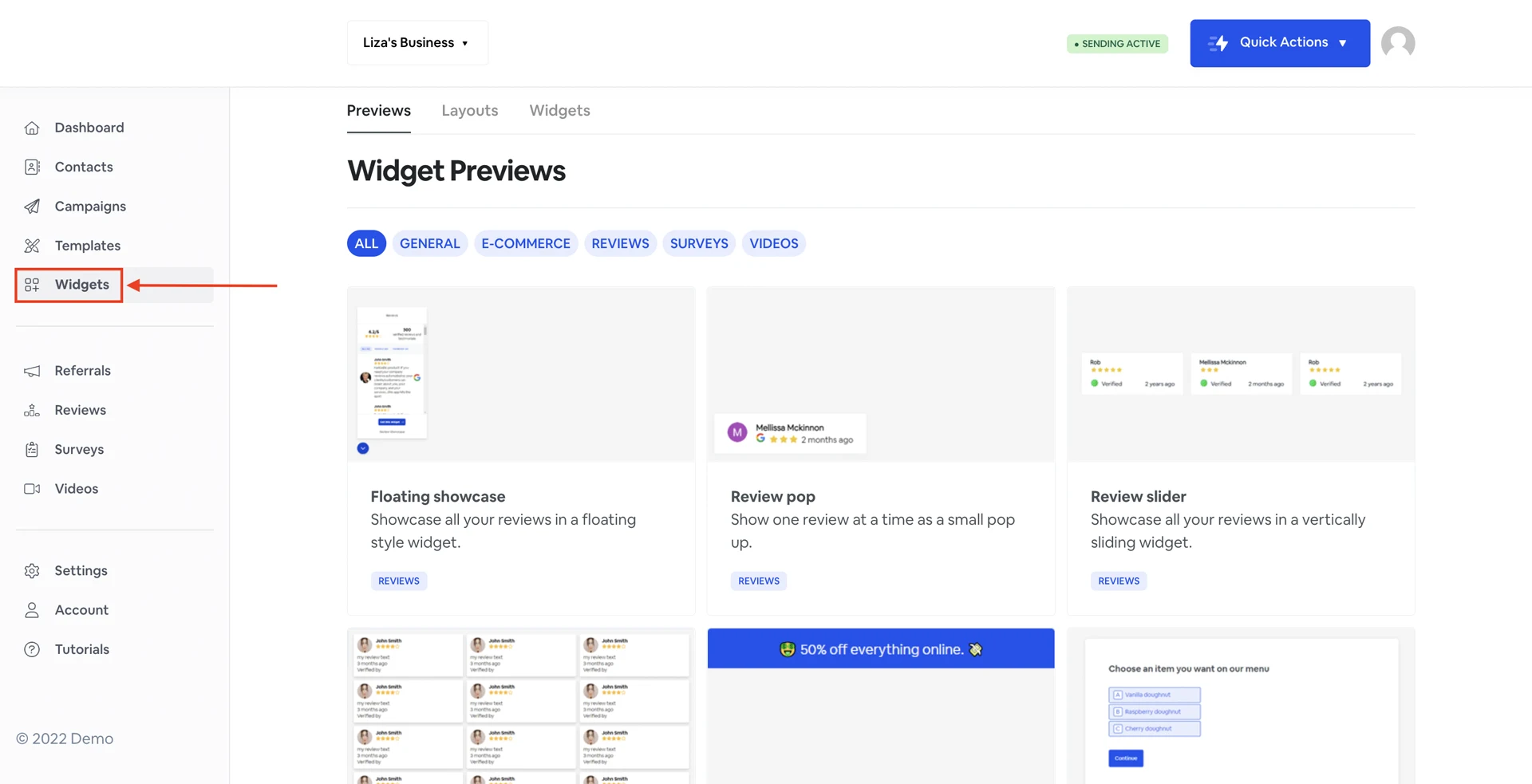
## **How to find Widgets in your dashboard?**
## **Widget Previews**
On this page, you can find all available widget types you can use and display on your website.
* General
* E-Commerce
* Reviews
* Surveys
* Videos
## **Layouts**
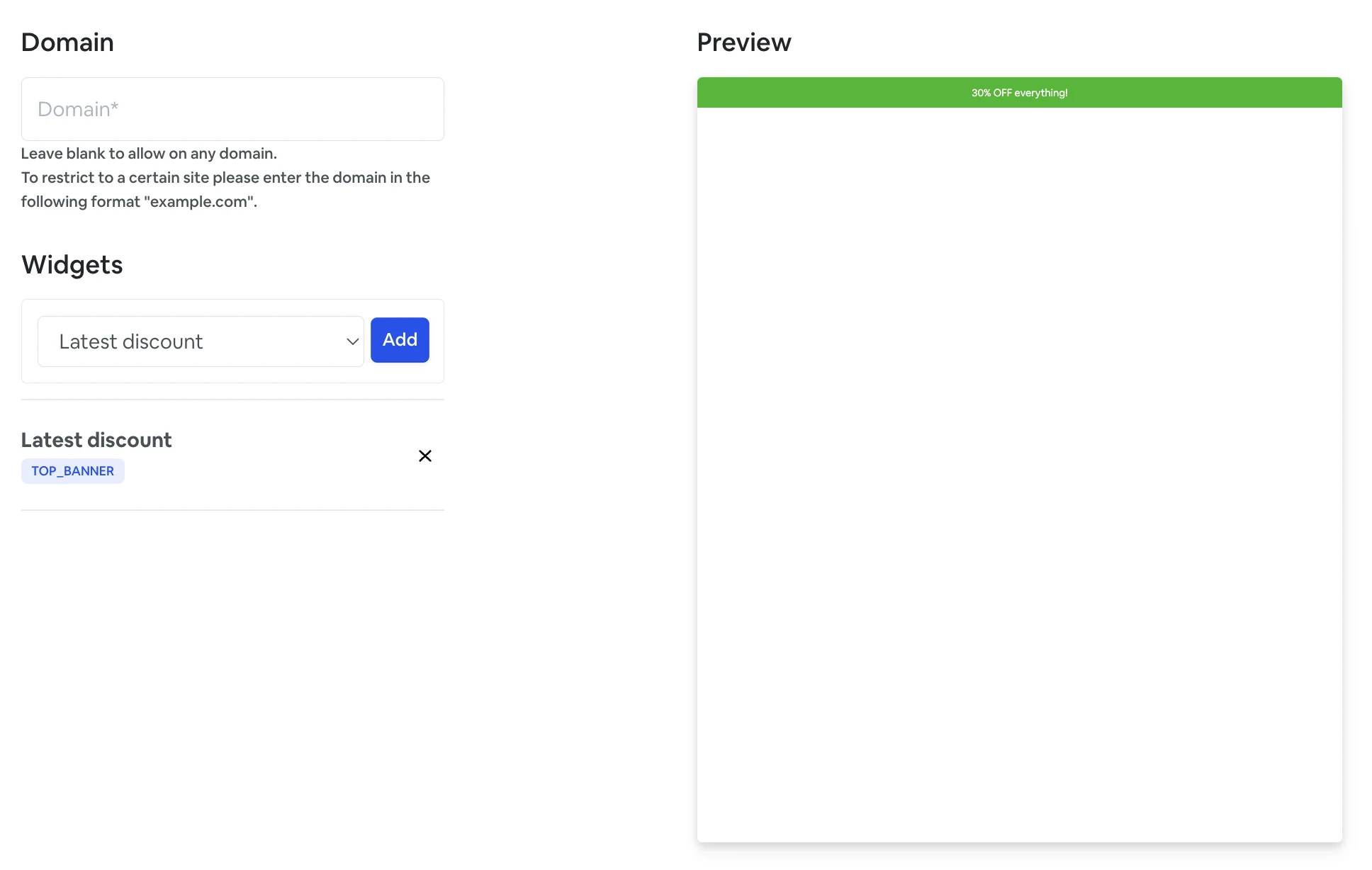
On the **Layouts** page, you can prepare your widget layout: add a domain, preview a widget, and copy an embed code to add to your website.
From the **Layouts** page, click 'Create website layout'.
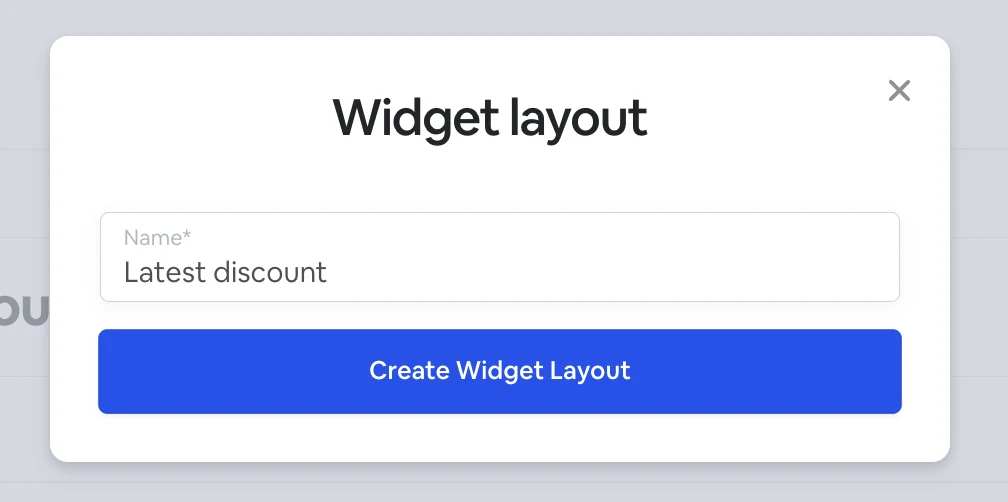
Give it a name and click 'Create Widget Layout'.
**Domain** field.
To restrict the widget functionality to a specific website, please enter the domain name in the following format "example.com".
In the **Widgets** field, choose the widgets you would like to use and click 'Add'.
You can preview some of the widgets on the right side of the screen.
## **How to embed a widget layout on the website?**
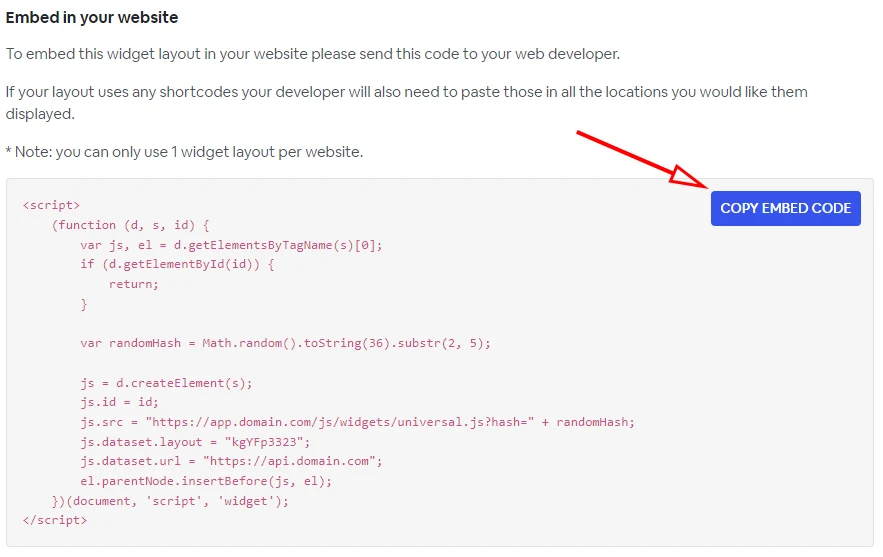
In the widgets layout section open the widget layout you want to embed and, click 'Embed' on the right upper corner.
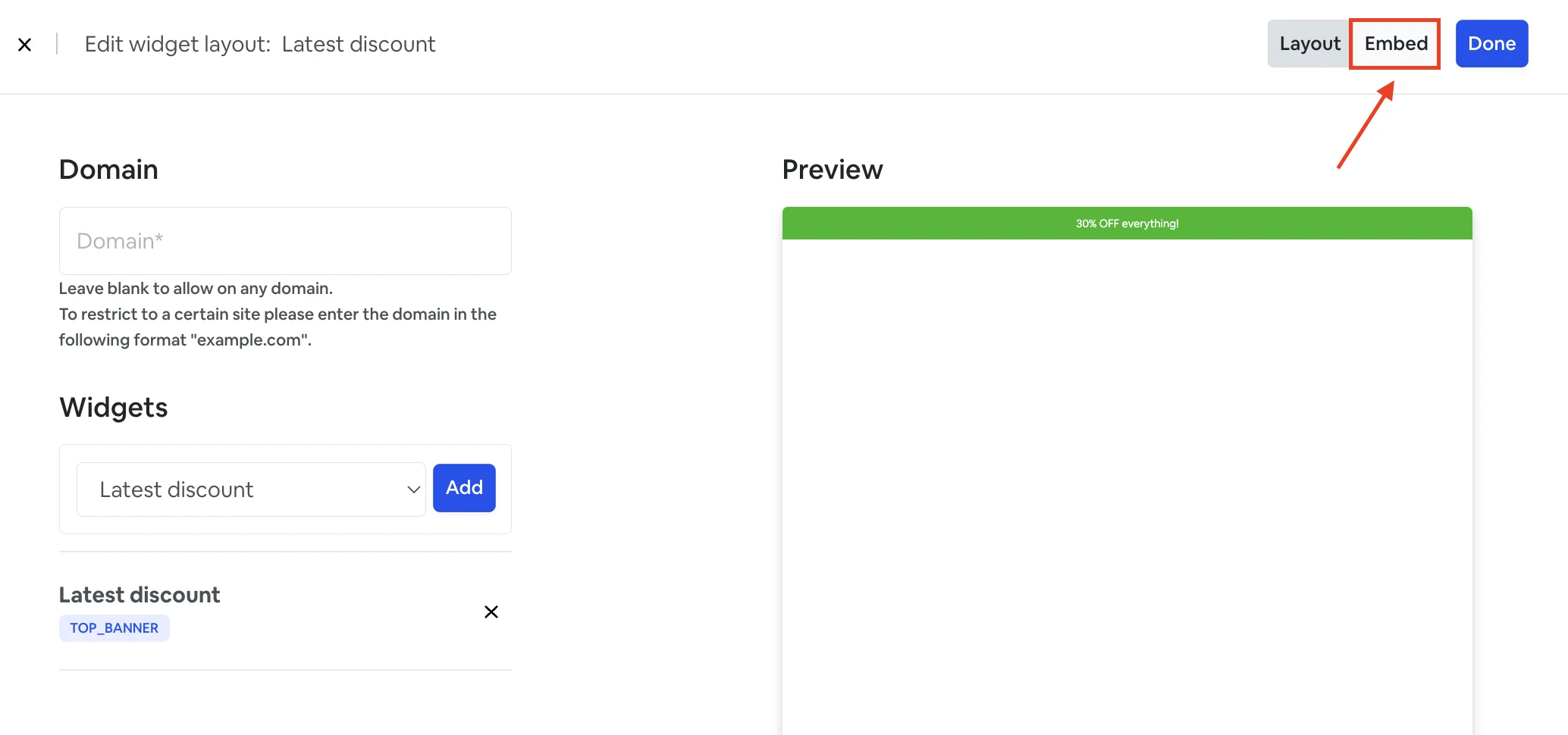
To embed a widget layout in your website please send this code to your web developer.
Some of the widgets require a short-code in order to be displayed on a specific page. The short-code is auto generated, your developer only needs to paste the short-code in all the locations you would like widget displayed.
\* Note: you can only use 1 widget layout per website.
## **Widgets Tab**
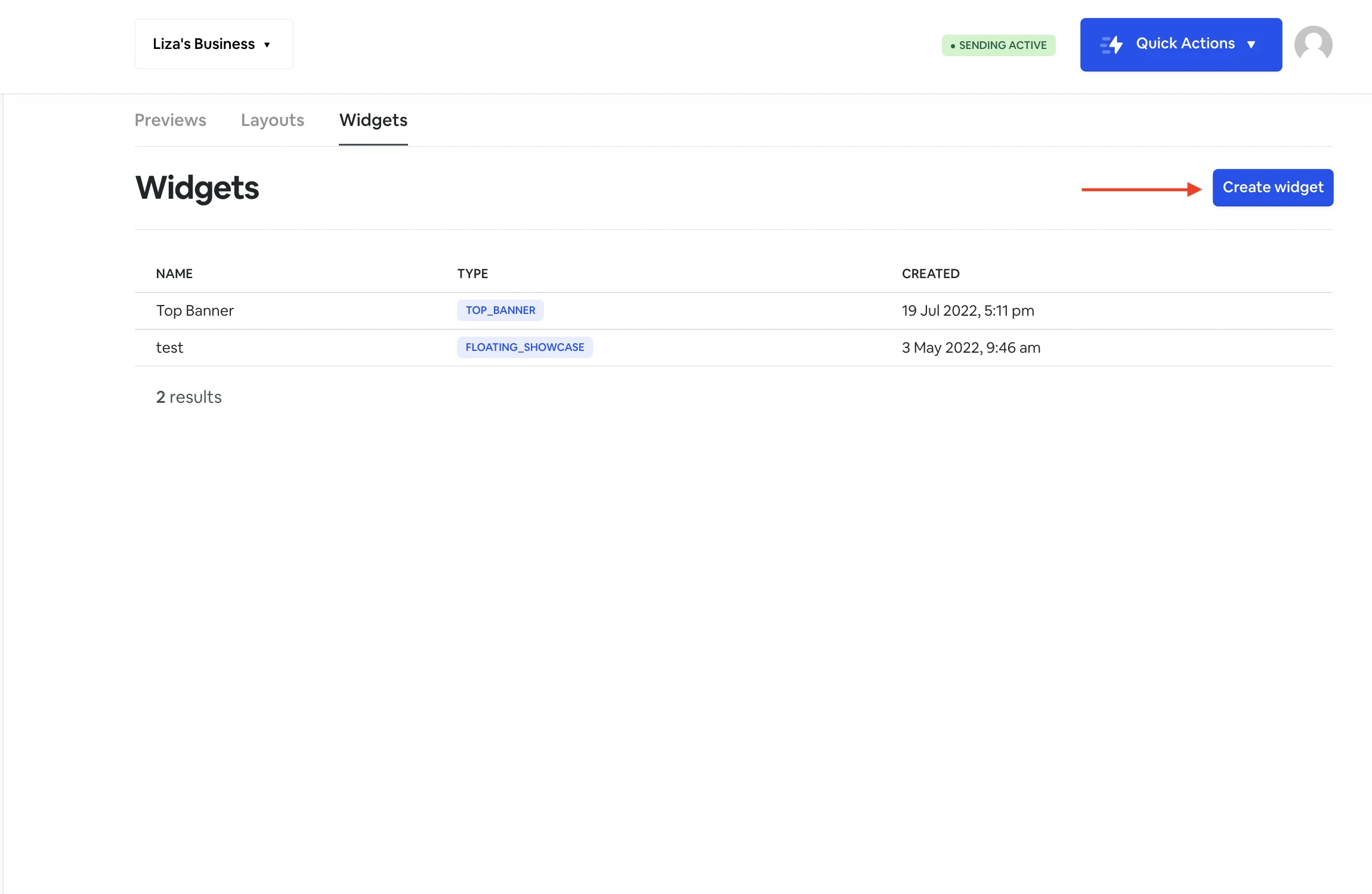
On the **Widgets** tab page, you can choose the type of widget you want to create and customize it to your needs.
To create a new **Widget** click **Create widget.**
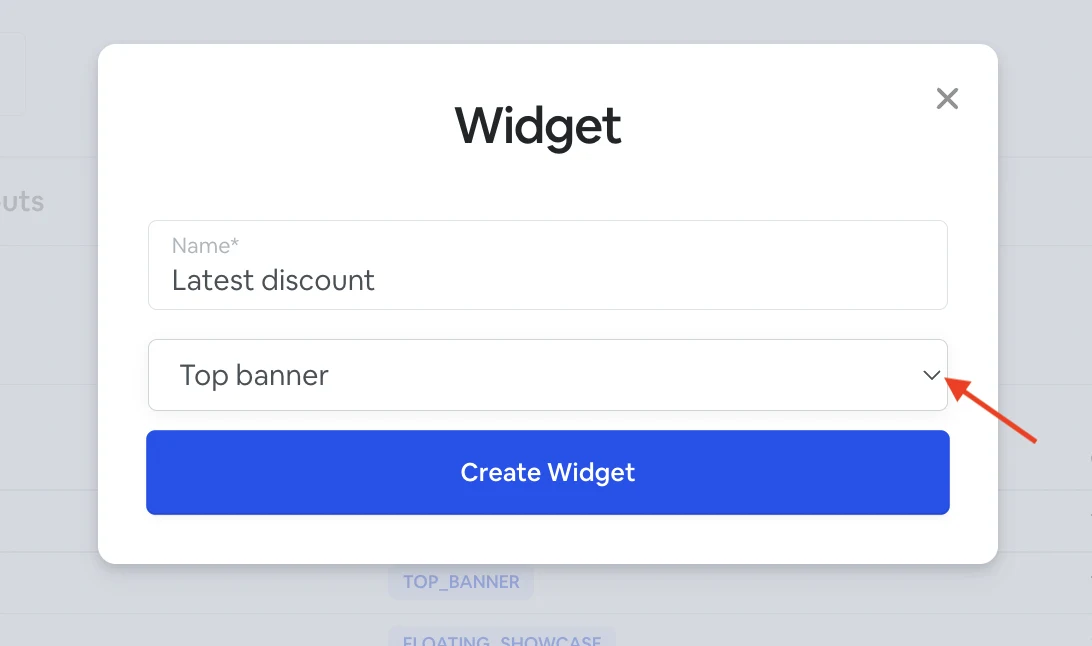
Give it a name and choose the type of widget from the drop-down menu. Click 'Create widget'.
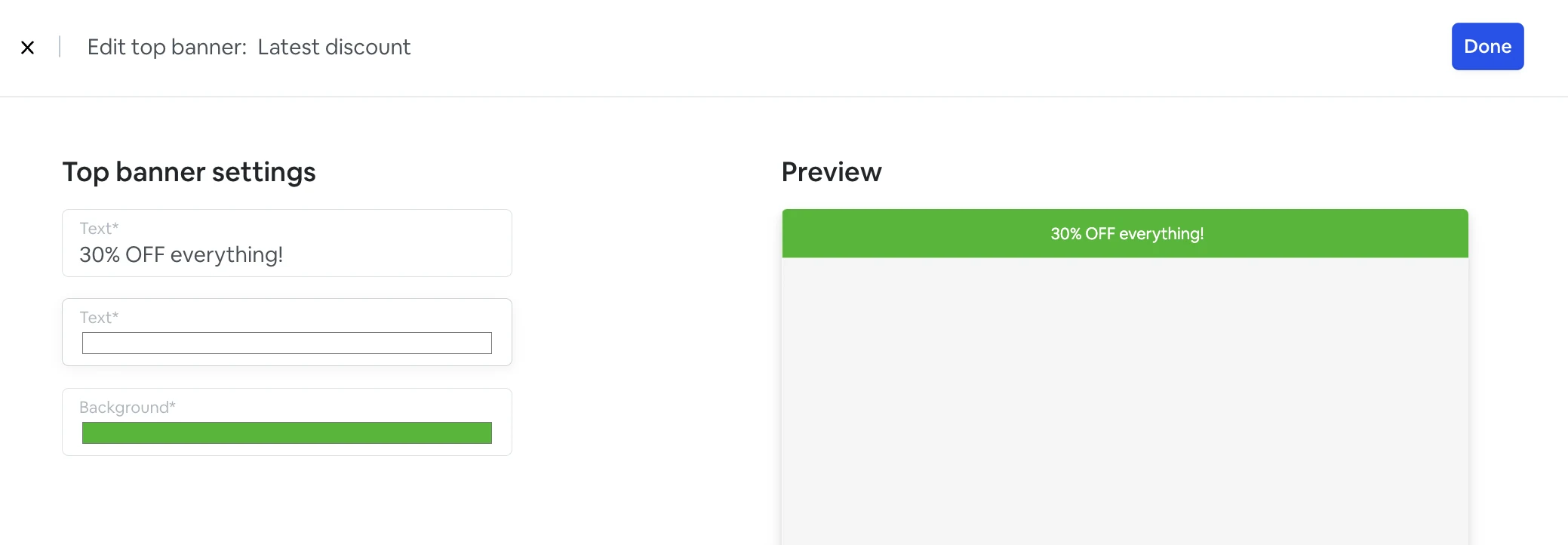
From here you can customize your widget:
* Add text
* Choose text color
* Choose background color
When you are finished customizing the widget click 'Done'.
Now the widget will be available in the **Layouts tab**.
## **Editing Widgets**
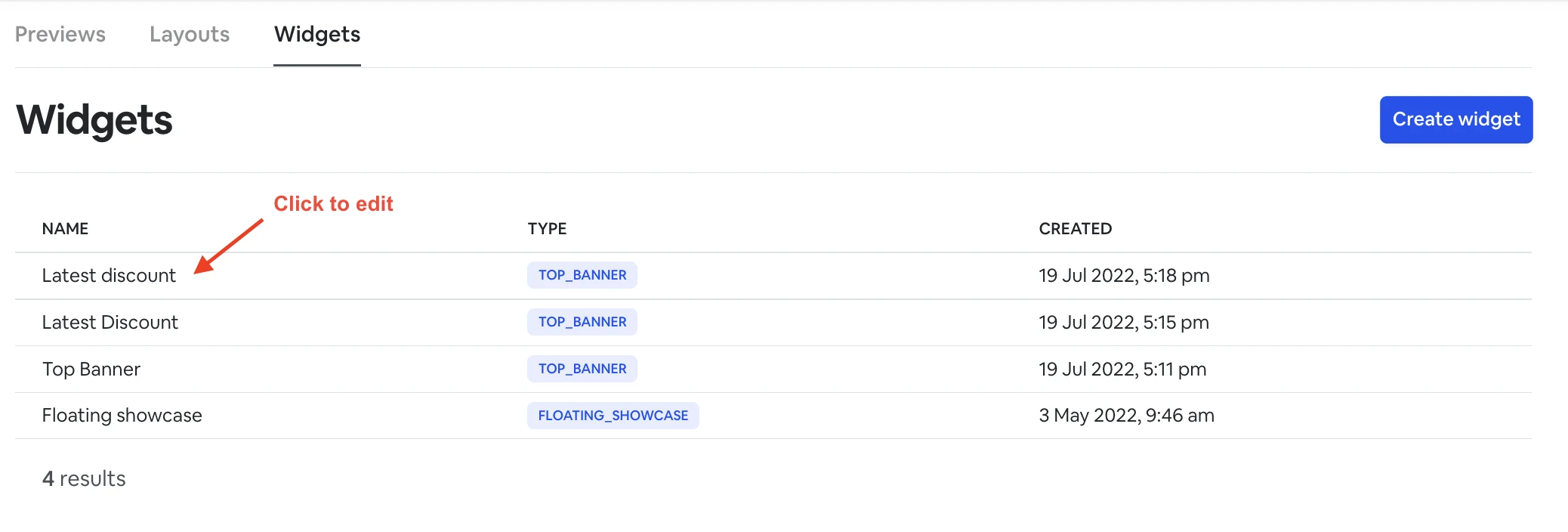
To edit a widget please navigate to the **Widgets** and click on the widget you would like to edit.