# Creating review forms

> Create and customize the review form your customers see when asked for a review.

Source: https://support.amazeful.com/reviews/getting-started-with-reviews/creating-review-forms
Documentation index: https://support.amazeful.com/llms.txt

## Overview

A review form is one of the most crucial components when asking for reviews, as it gives you the power to customize how your customers interact with the review form landing page once they click on the SMS text message or email review link.

In order to automate review requests, you need first to create review forms. This section explains how to do it.

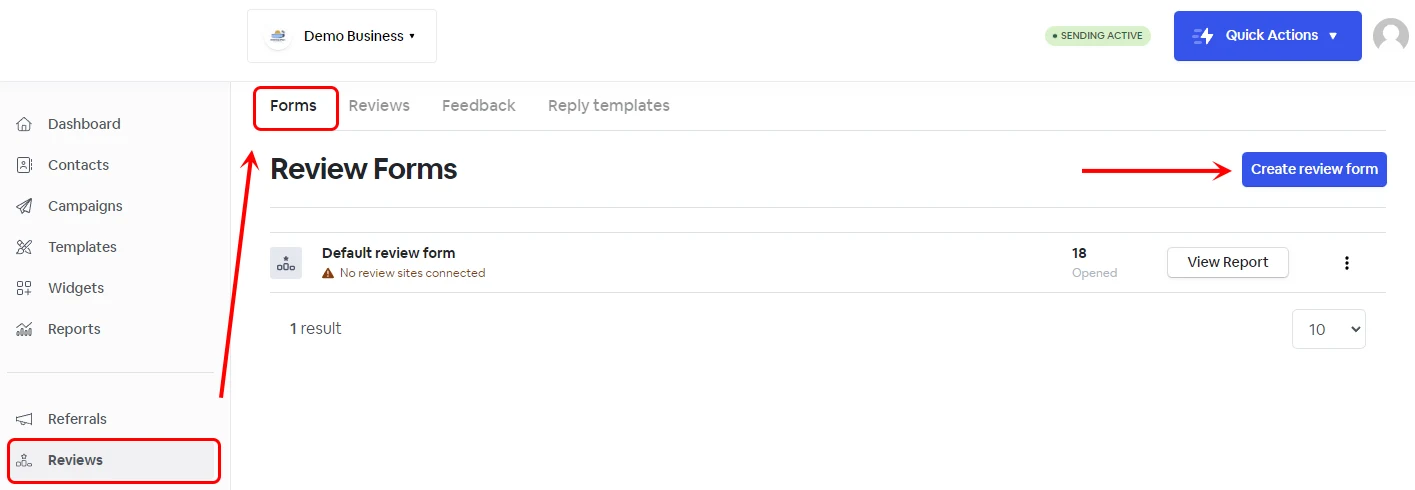
From your account, go to **Reviews** and click **Create review form.**

<div align="left"><figure><img src="https://support.amazeful.com/files/Qy4qdMsLfBYO5c2iCFYx.webp" alt=""><figcaption></figcaption></figure></div>

Give it a name and click **Create review form.**

### Form Settings

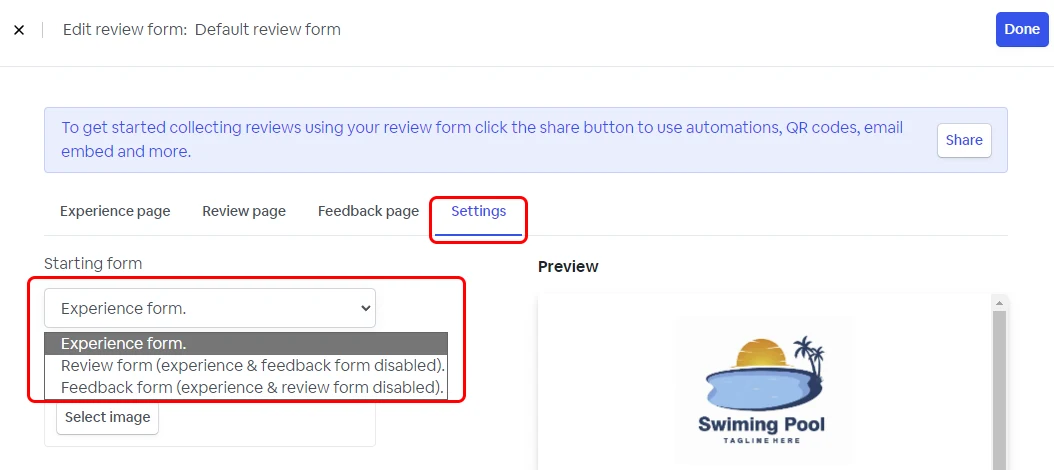
Under form, **Settings** select which form you want to create

<table><thead><tr><th width="329"></th><th></th></tr></thead><tbody><tr><td>Experience form (Default Setting)</td><td>The experience form will prompt customers to rate their experience before leaving a review or feedback.</td></tr><tr><td>Review form</td><td>Customers will only have the option to click on one of the review sites linked to this form.</td></tr><tr><td>Feedback form</td><td>Customers will only have the option to leave internal feedback.</td></tr></tbody></table>

<figure><img src="https://support.amazeful.com/files/TREn2qs1YN1huxYWUEZ7.webp" alt=""><figcaption></figcaption></figure>

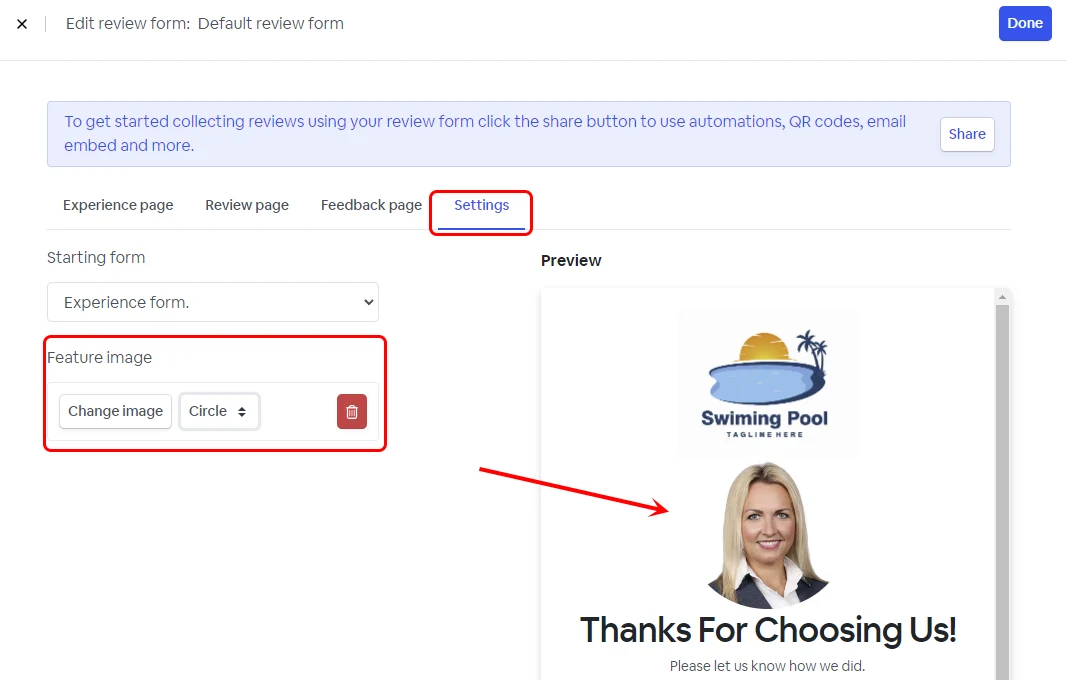
Personalize the review form with an image.

<div align="left"><figure><img src="https://support.amazeful.com/files/DparPTWd8DasVfzp6uZr.webp" alt=""><figcaption></figcaption></figure></div>

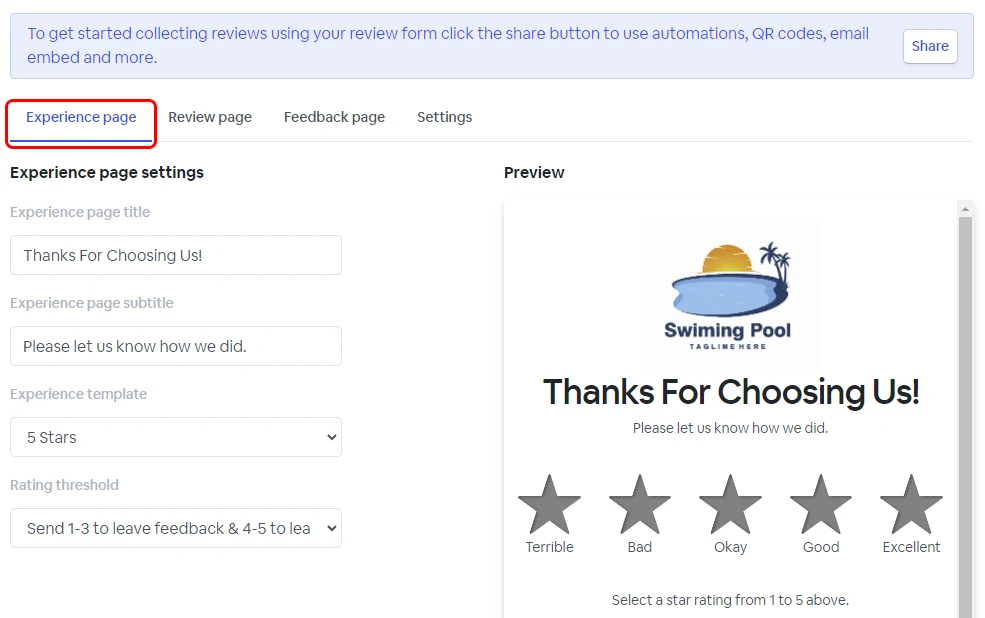
### **Experience page options**

<table><thead><tr><th width="329"></th><th></th></tr></thead><tbody><tr><td>Experience page title</td><td>Add a title for the experience page.</td></tr><tr><td>Experience page subtitle</td><td>Add a subtitle for the experience page.</td></tr><tr><td>Experience template</td><td>Select a template (display 5 stars or 5 faces).</td></tr><tr><td>Rating threshold</td><td>Choose where to send a customer based on the rating he leaves. He can be directed to the feedback page or to the review page based on the rating threshold.</td></tr></tbody></table>

<div align="left"><figure><img src="https://support.amazeful.com/files/CQ8nVWIL2Eh5TvCAVjkj.webp" alt=""><figcaption></figcaption></figure></div>

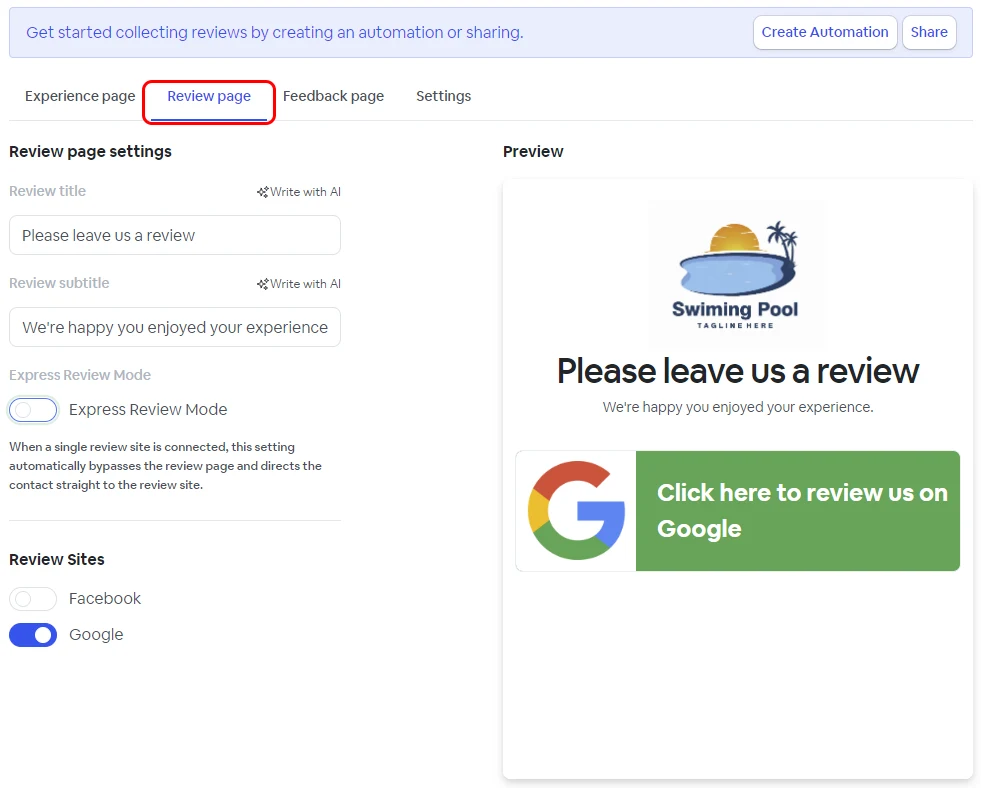
### Review page options

<table><thead><tr><th width="346"></th><th></th></tr></thead><tbody><tr><td>Review title</td><td>Add a title for the review page.</td></tr><tr><td>Review subtitle</td><td>Add a subtitle for the review page.</td></tr><tr><td>Express Review Mode</td><td>You can enable Express Review Mode when you have only one review site connected to streamline user interaction and boost review conversion.</td></tr><tr><td>Review Sites</td><td>Activate the links for the review sites you want displayed to your customers.</td></tr></tbody></table>

<div align="left"><figure><img src="https://support.amazeful.com/files/j3S41UTXdywLxEKuT21p.webp" alt=""><figcaption></figcaption></figure></div>

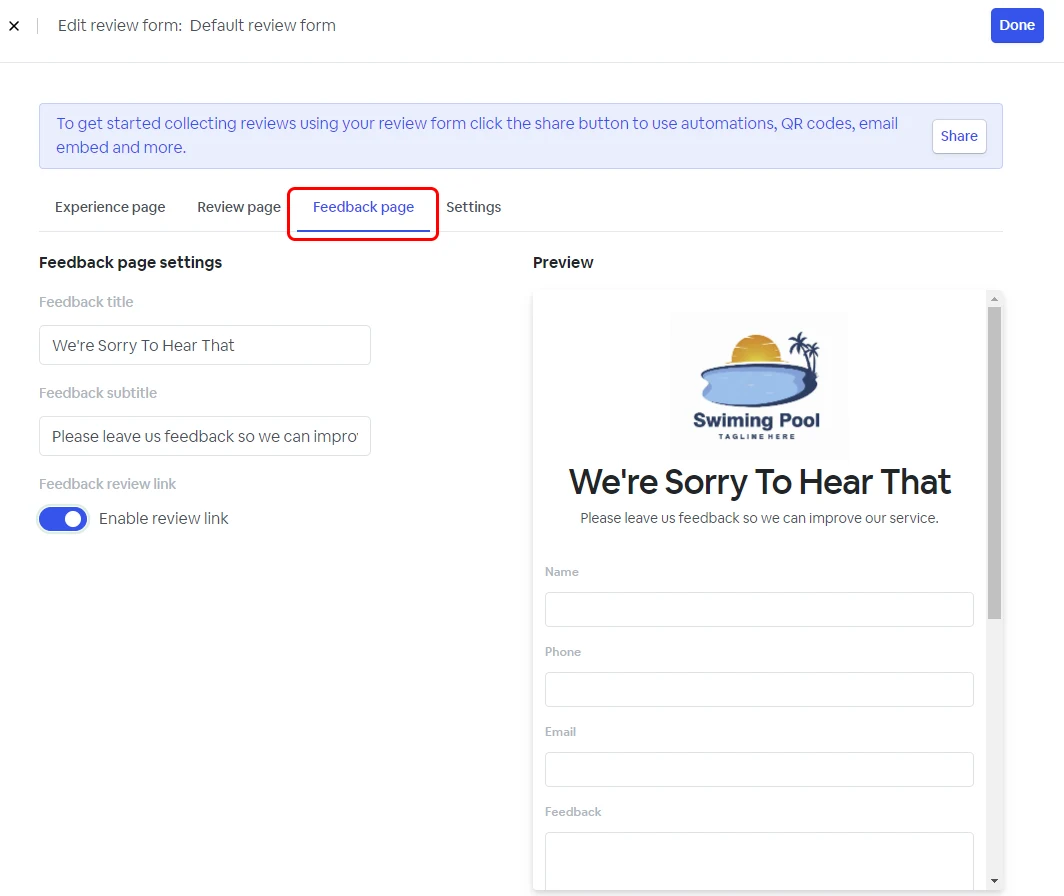
### **Feedback page options**

|                    |                                                                                                                                                                                                         |
| ------------------ | ------------------------------------------------------------------------------------------------------------------------------------------------------------------------------------------------------- |
| Feedback title     | Add a title for the feedback page                                                                                                                                                                       |
| Feedback subtitle  | Add a title for the feedback page                                                                                                                                                                       |
| Enable review link | You can enable a review link in case customers want to leave feedback publicly. **If you are collecting Google reviews, this setting needs to be turned on in order to comply with Google guidelines.** |
|                    |                                                                                                                                                                                                         |

<div align="left"><figure><img src="https://support.amazeful.com/files/nOsPq65UFBh9ezgugMXj.webp" alt=""><figcaption></figcaption></figure></div>

Once your review form is ready, click **Done** at the top right.