# Reply templates
> Create templates that speed up automatic and manual replies to reviews.
Source: https://support.amazeful.com/reviews/reply-templates
Documentation index: https://support.amazeful.com/llms.txt
## Overview
This section explains how to create reply templates for auto-replying to reviews or for using templates for manual replies. Reply templates speed up your review replies and ensure all the replies are compliant to your company guidelines.
## How to create reply templates?
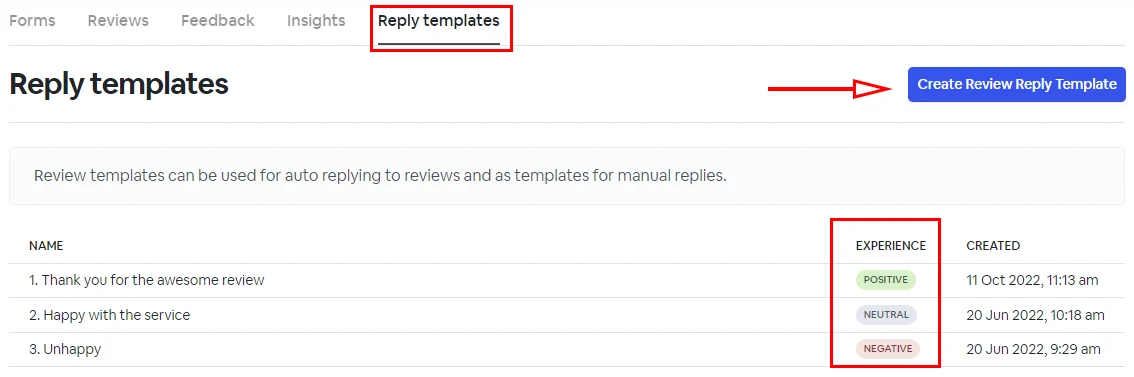
1. From your dashboard go to **Reviews** -> **Reply Templates**. Click Create Review Reply Template.
2. Give it a name and click **Create Review Reply Template.**
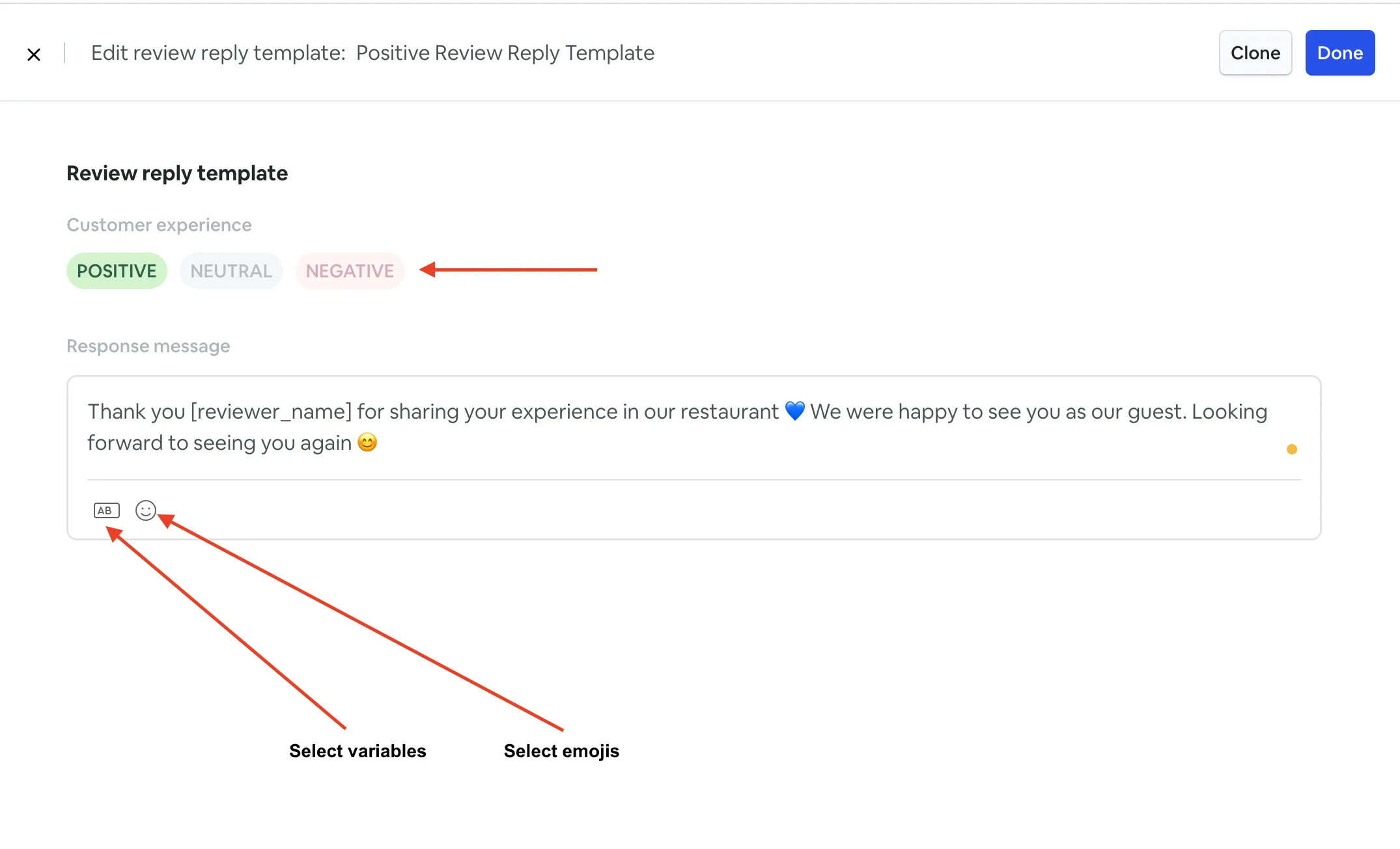
3. Select the type of experience: positive, neutral or negative.
4. Create your response message. If you click on the **AB** button**,** you can add variables to your response. Such as the reviewer's name or your business name. If you click on the smile button, you can add emojis to your response.
5\. Once it's ready click **Done.**