Audiences
Create audiences to group contacts, adding and removing them manually.
Audiences vs Segments
What is an Audience
Audiences are the most common way to organize and group contacts, used by 80% of businesses. Audiences require manual addition and removal of contacts.
Usage of audiences:
- Separate retail and commercial contacts.
- Group contacts based on the internal agent/salesperson.
1. Creating an audience
A static audience implies a manual adding or removing contacts. To create a static audience go to the 'Contacts' tab, manually select the contacts that you need > click 'Actions' > 'Add to new audience' OR Add to existing audience.
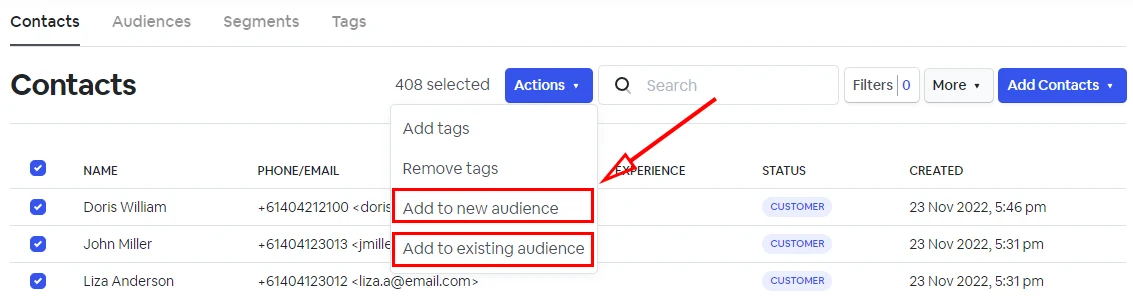
Choose a name for your audience and click 'Add to new audience' or click 'Add to existing audience' and select the audience name.
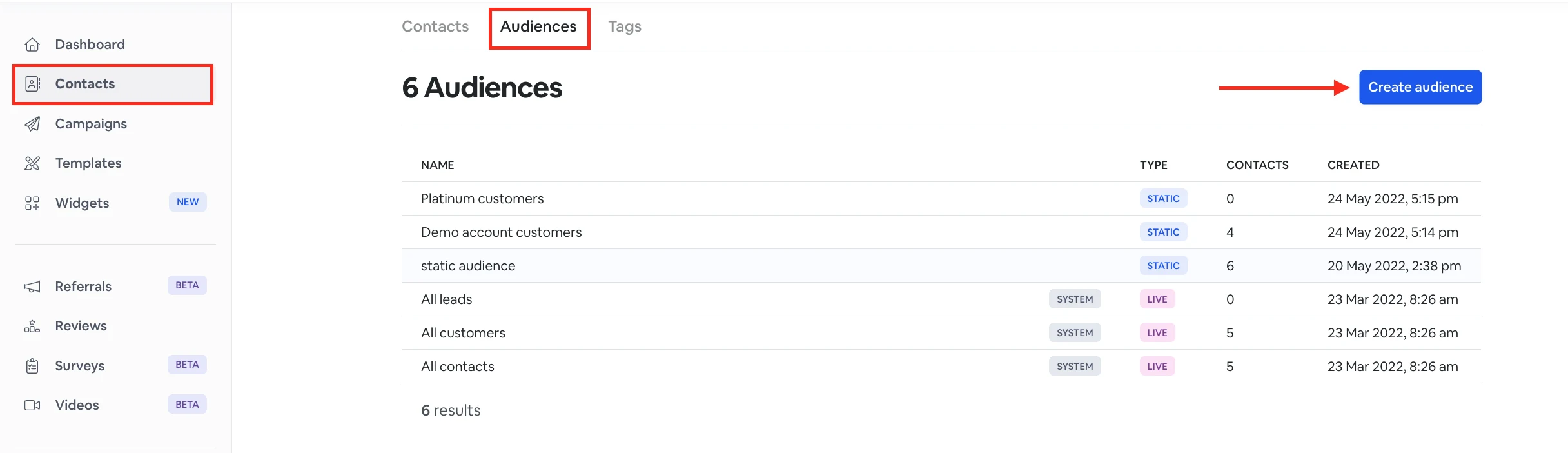
You can also create a static audience from the 'Audiences' section.
To do this, go to 'Contacts' > 'Audiences' > 'Create audience'. Give a name to your audience and click 'Save'.
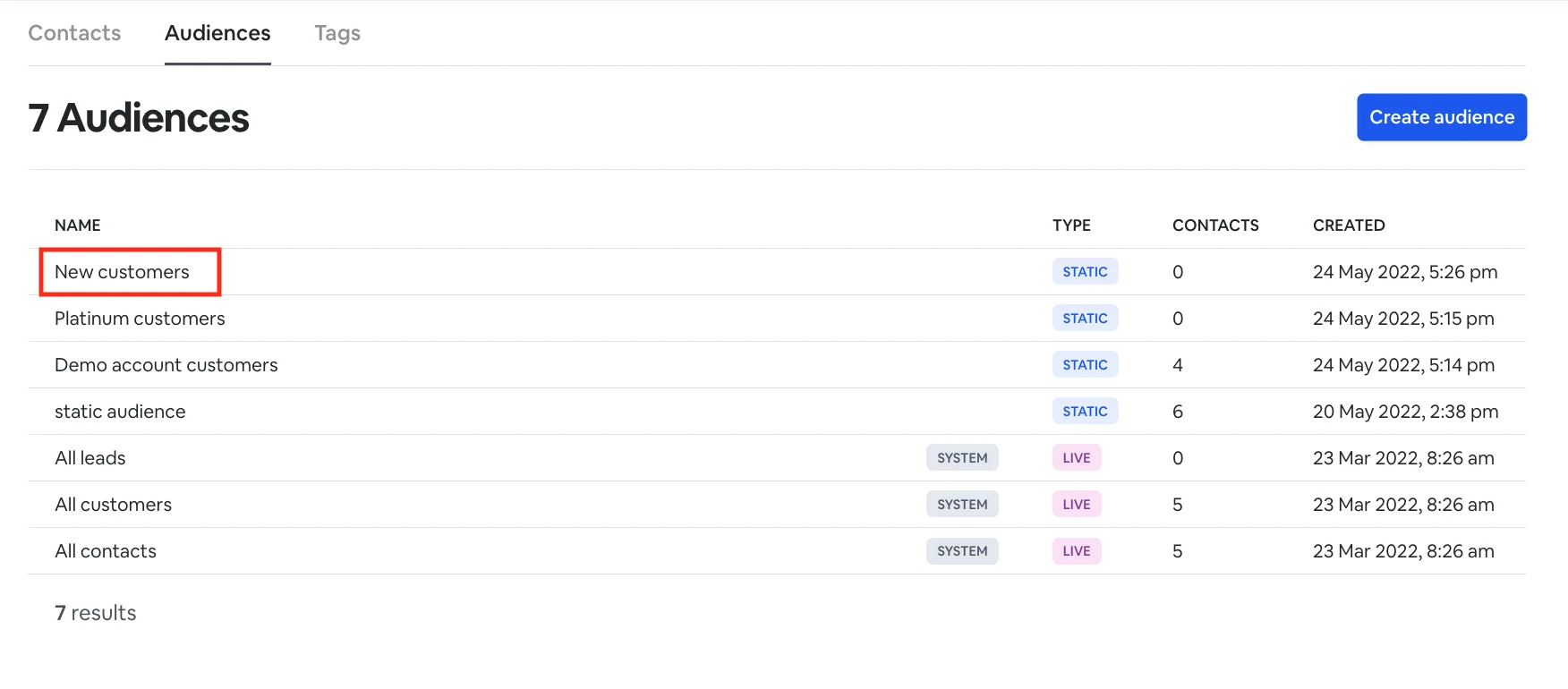
Now, click on the audience you've just created from the list and add contacts.
2. Adding contacts to an audience
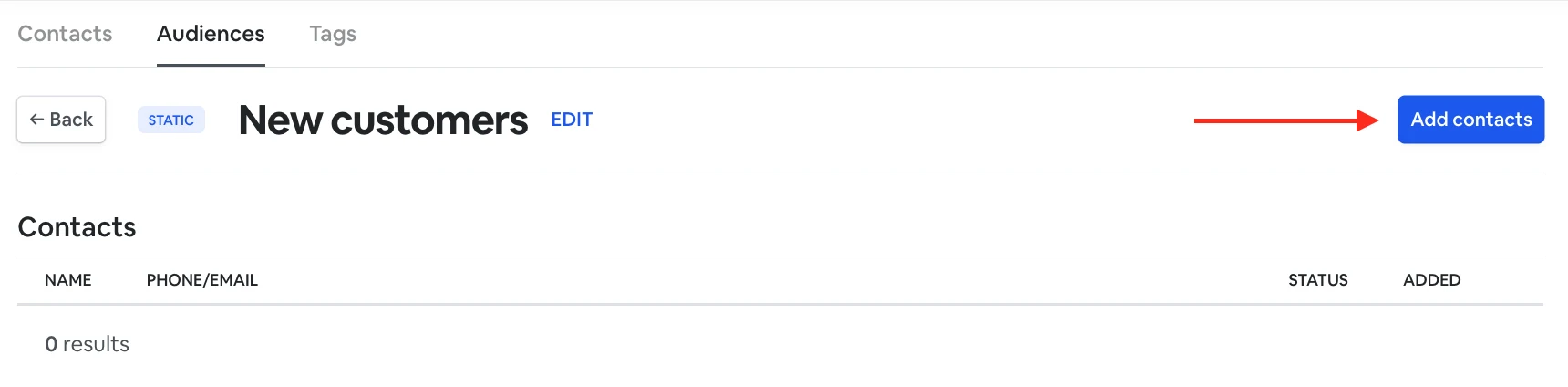
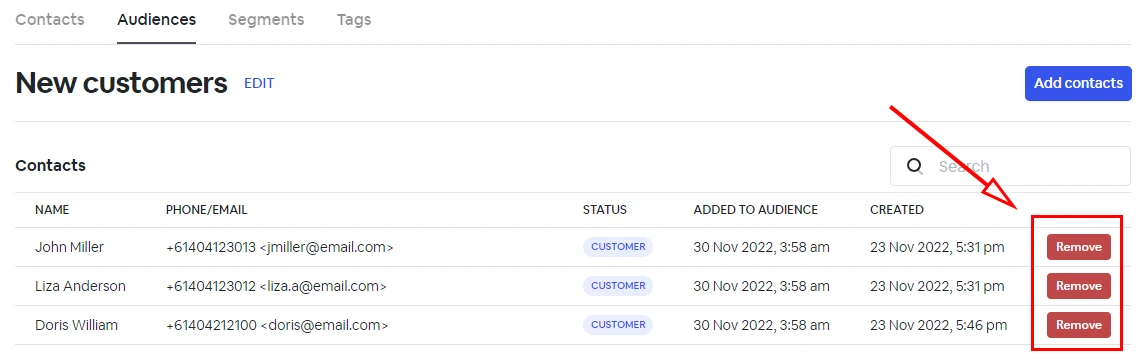
You can add the contacts you need to your audience using the Add contacts button inside the audience.
3. Removing contacts from an audience
Use the remove button next to each contact to remove it from this audience.
Info
NOTE: If a contact is unsubscribed, it will also be removed from all audiences.
Extracting the Audience ID from the Audience URL
To obtain the Audience ID for API usage, follow these steps:
- Navigate to Contacts in the Amazeful platform.
- Click on Audiences.
- Select the desired Audience Name.
- The Audience ID is the last segment of the URL in your browser.
Example:
When viewing an audience, the URL will appear as:
https://app.amazeful.com/audiences/**AbCd1234**
In this case, the Audience ID to use in API requests is: AbCd1234