Inbox Settings
Remove an attached phone number and choose what happens with inbound calls.
2 min readUpdated 1 year ago
In this section, you can remove an attached phone number and you can set the Inbox behavior when an Inbound call is received.
How to access the Inbox settings?
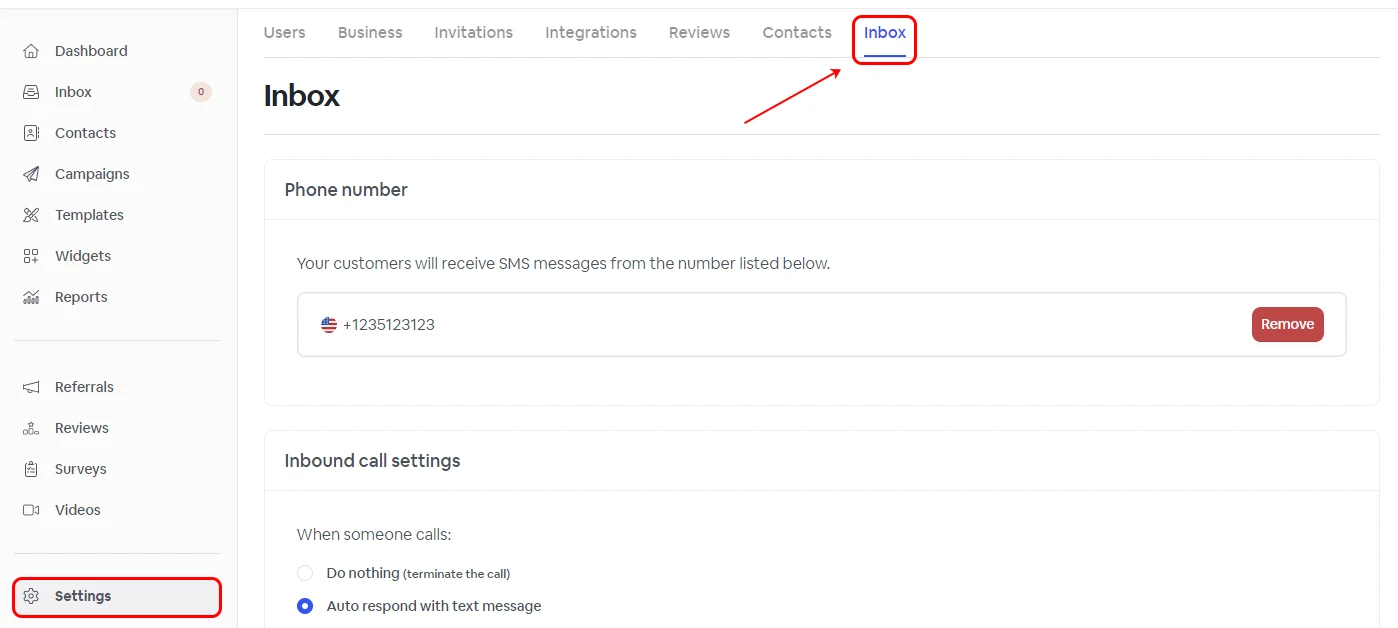
To customize your Inbox behavior, go to Settings -> Inbox.
Removing Inbox Phone Number
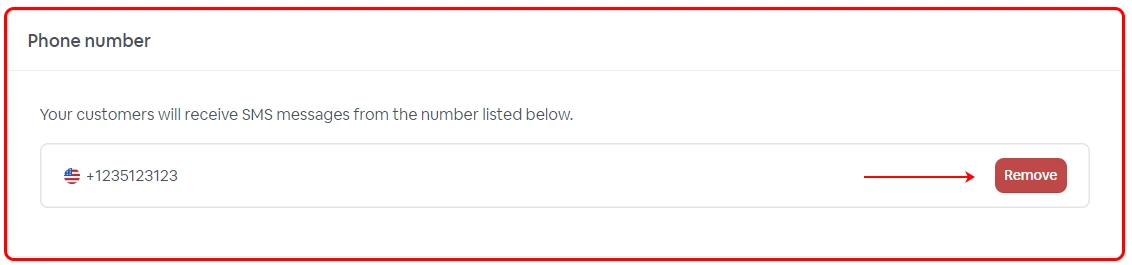
Click the Remove icon in the Phone number section.
Inbound call settings
Customize the Inbox behavior when a call is received.
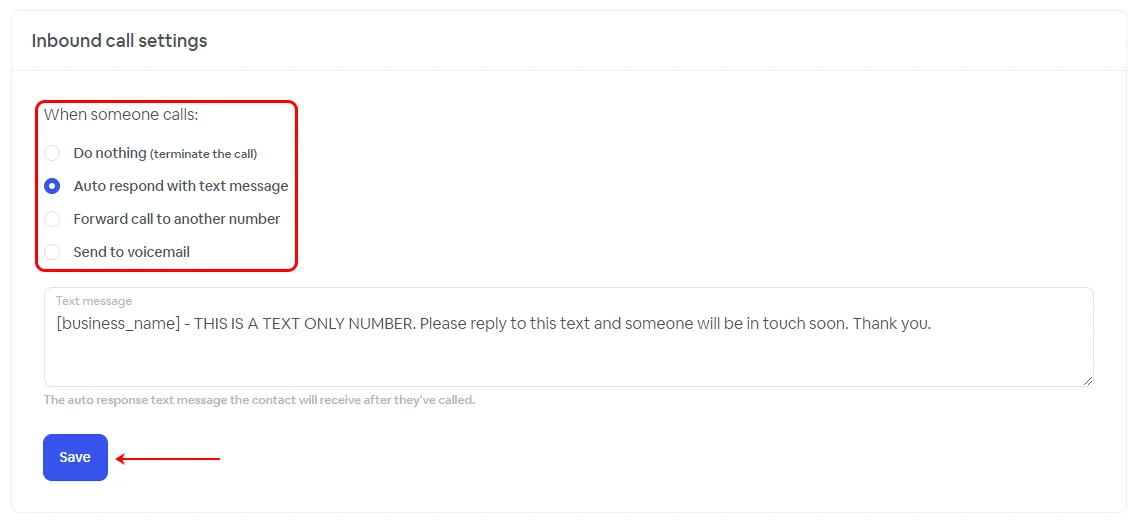
| Do Nothing | This option will simply terminate the incoming call. |
| Auto respond with text message | Activating this option will trigger an automated response with a custom text message that has been configured in the box below. |
| Forward call to another number | Enabling this setting allows you to redirect the call to a designated number of your choosing, with the option to set a personalized voice message during the diversion. |
| Send to voicemail | Selecting this option will present the customer with a voicemail. You have the flexibility to personalize the voicemail text, upload your custom recording in MP3 format, set the maximum recording length, and include a Goodbye voice message at the end of the recording. Customer voice messages can be accessed in the Inbox, and you will receive notifications for new voice messages. |
Info
Auto-respond with text message will use SMS credits, with the usage dependent on the length of your response text message.
Forwarding calls to another number will result in a per-minute charge, determined by the destination country and the specific number you forward the call to. For up-to-date cost details, please reach out to our support team.