Adding a Contact
Add a single contact from the Quick Actions menu or the Contacts page.
1 min readUpdated 1 year ago
There are two ways to add a single contact. You can add them using the Quick Actions button or through the Add Contacts button.
Adding a contact from the quick actions menu
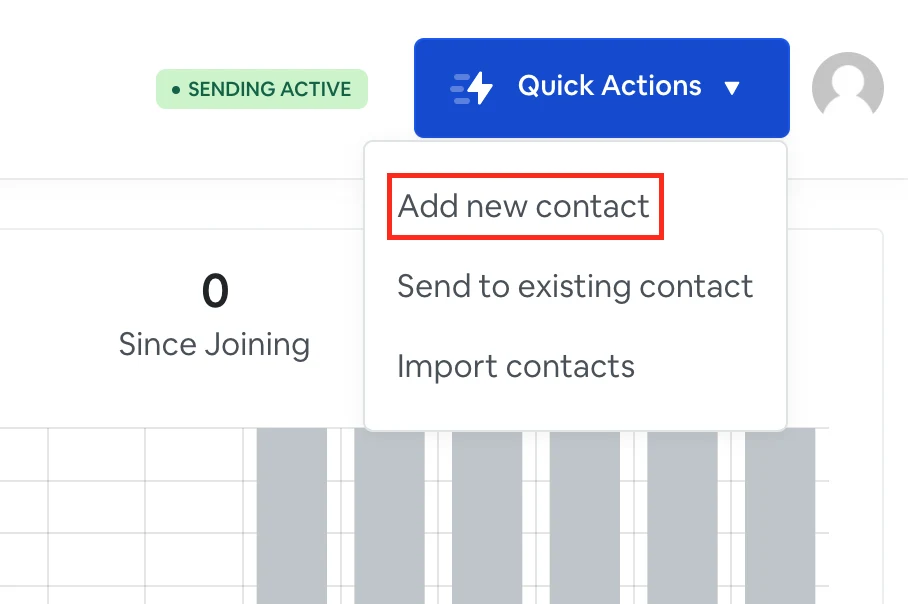
- In your dashboard, click the Quick Actions button at the top right corner. Select Add new contact.
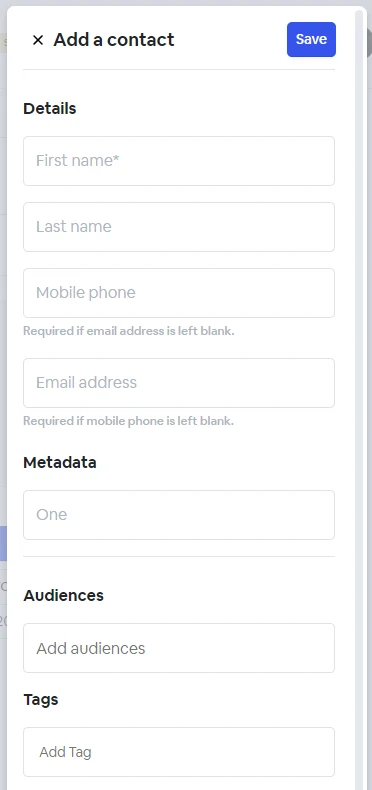
- From here, you can enter the details about your contact, add tags, metadata and select the audience you want the contact added to.
Adding a contact from the contacts page
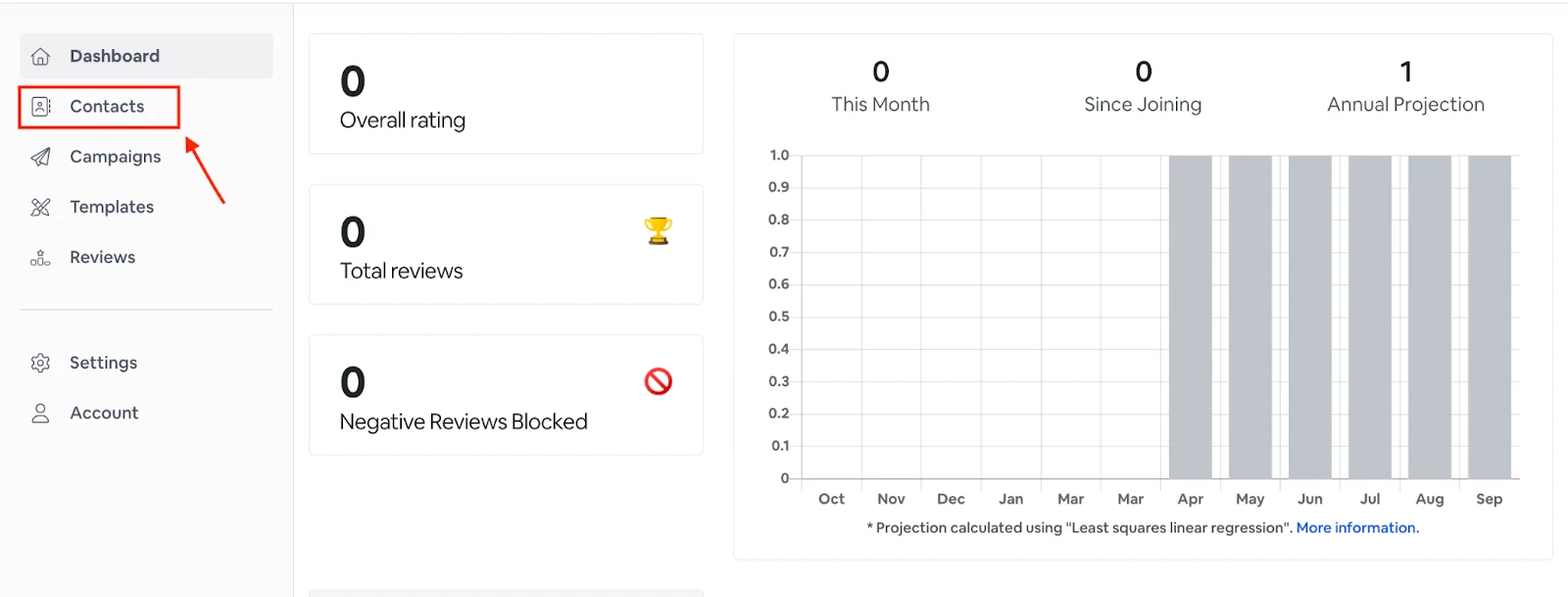
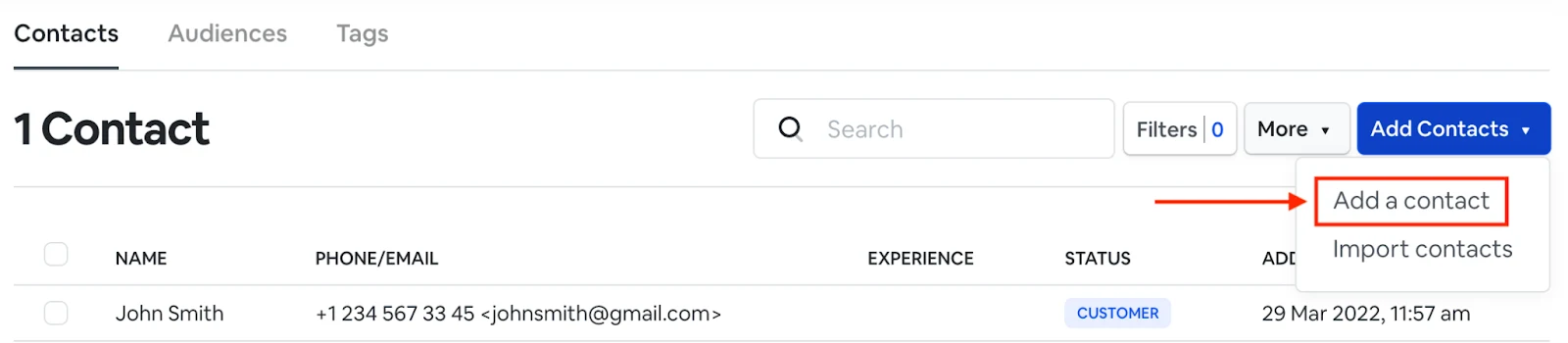
Alternatively, click Add Contacts from the left menu and select Add A Contact.
NOTE: A new contact will be automatically added to the All Contacts and All Customers segments.